Catalog
10 Products
Every tagged item you have issued. Find any product in seconds, see its scans and history, edit its data, print its code, or block it.
Ten rozdział nie jest jeszcze dostępny w wersji językowej (Polski), więc czytają Państwo wersję angielską.
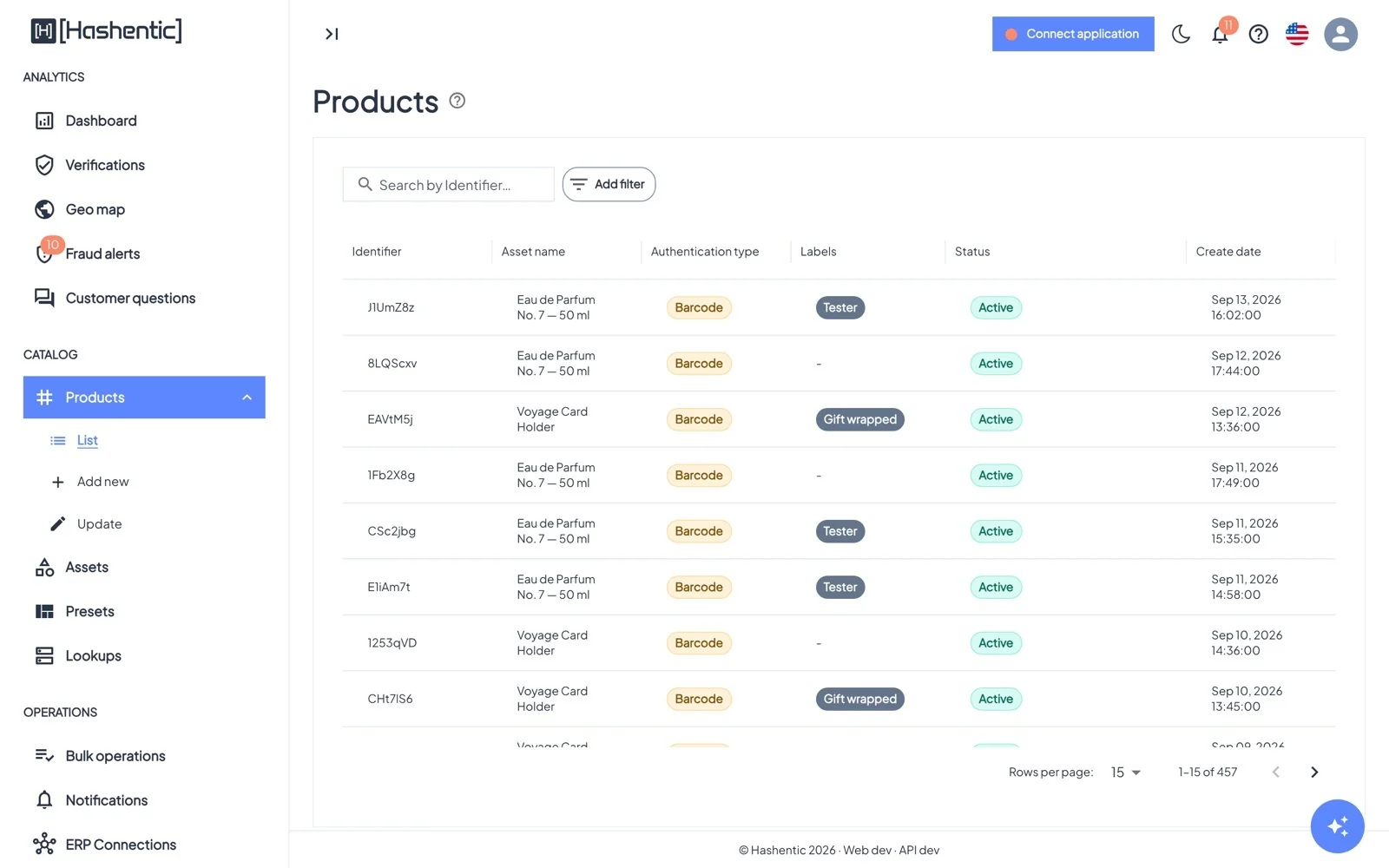
Search by identifier or use Add filter for Identifier, UID, Authentication type, Labels, Deleted, Blocked and Create date. Under Products in the menu you also find Add new (create and tag products, see chapter 16) and Update (scan products to edit them, alone or in bulk).
The product page#
Tabs#
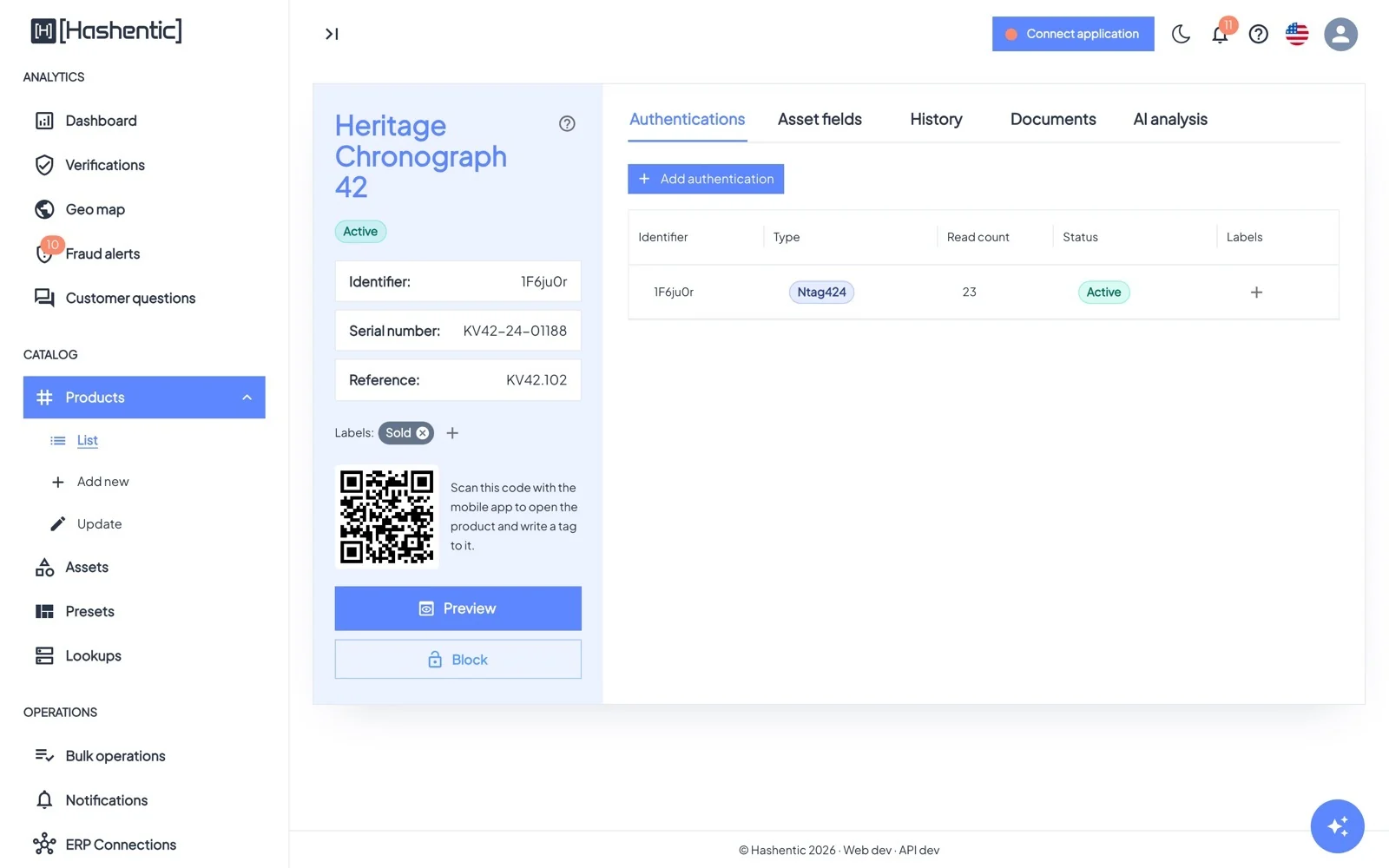
- Authentications: the tags and codes of the product with their type, read count, status and labels. Add another one with Add authentication; block, unblock, remove one, download its barcode or give it its own page template.
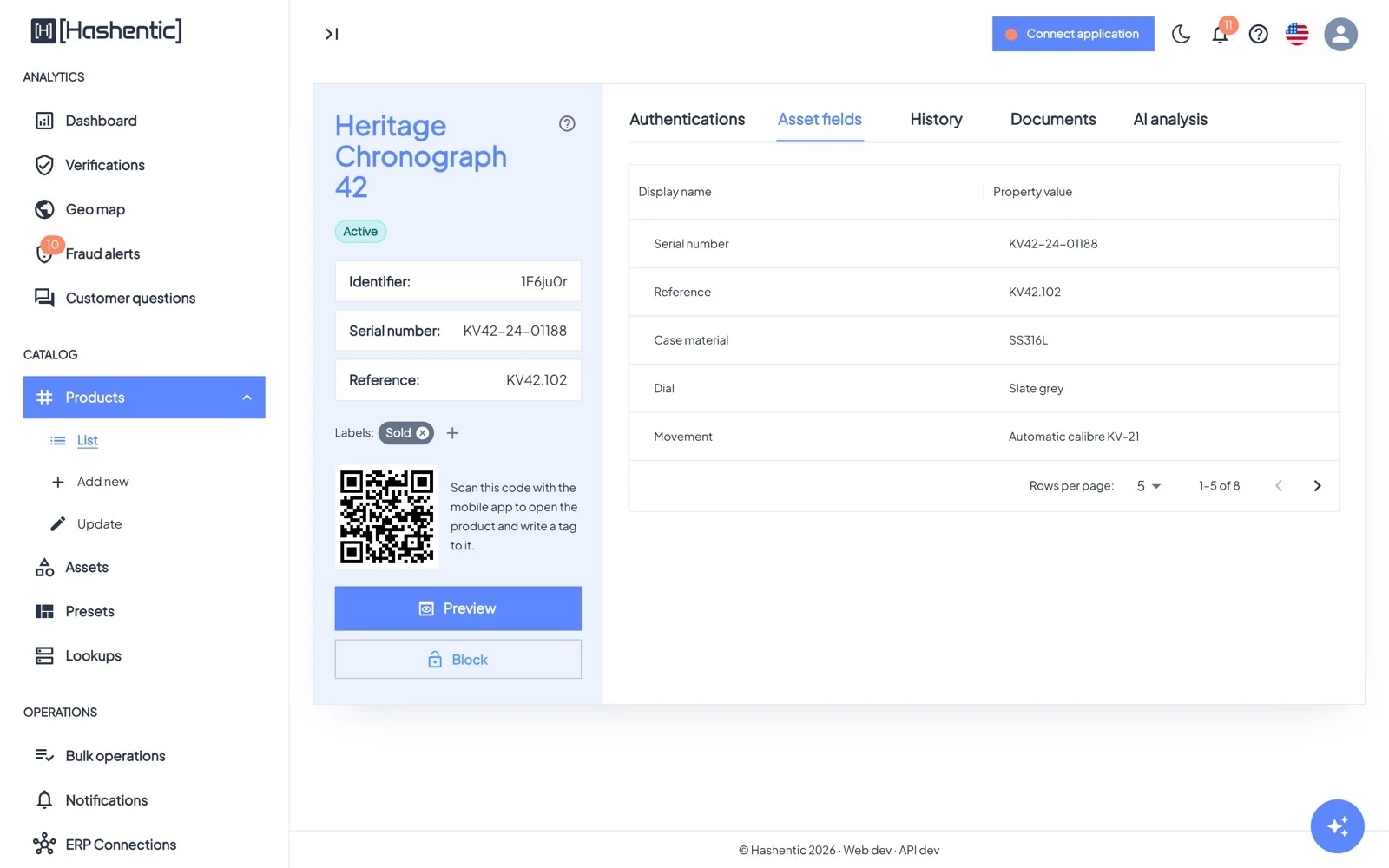
- Asset fields: the product's values.
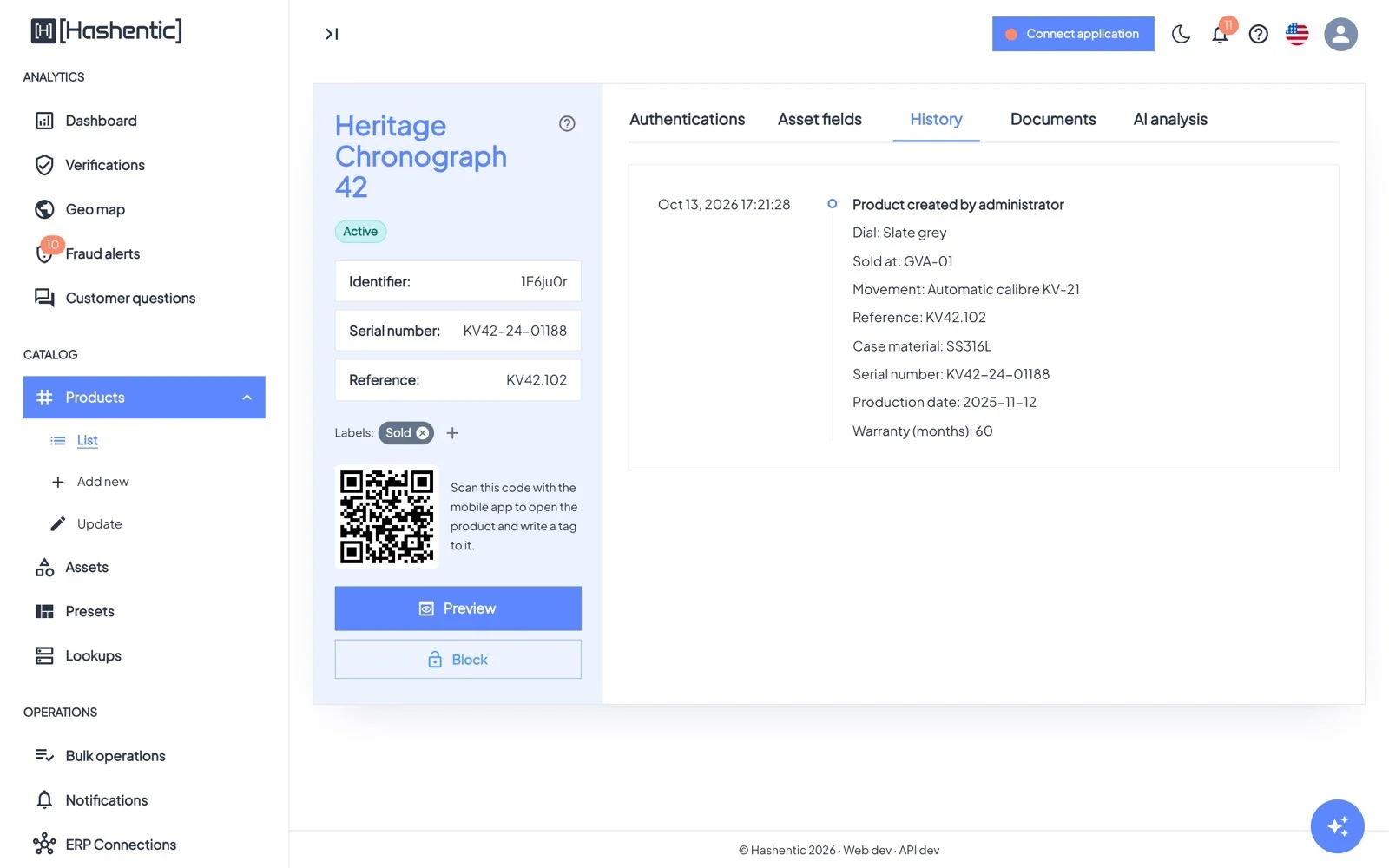
- History: who created and changed the product, and what changed.
- Documents: files for this one item (certificate, service record).
- AI analysis: ask questions about this product's scans (chapter 19).
Actions#
- Preview shows the verification page exactly as a customer would see it.
- Edit changes values of fields that allow updates.
- For products with secure NFC tags, Edit, Block and Delete appear after tapping the tag (Products → Update) or when the asset allows unprotected management. Single tags can always be blocked on the Authentications tab.
- Download exports the barcode as PDF, CSV, XLSX or TXT.
- Block / Unblock: a blocked product fails every verification.
- Delete removes the product from use; it stays in the records as deleted.
- QR for the mobile app opens the product in the mobile app, for example to write a tag to it.