Guide · Brand protection
28 Show a different page when a scan fails
Tell customers in plain words what happened: a reused link, a withdrawn product and a suspected copy each get their own page.
Ten rozdział nie jest jeszcze dostępny w wersji językowej (Polski), więc czytają Państwo wersję angielską.
- Open the asset, go to the Auth templates tab and scroll to Failed page rules. Click New rule.
- Name it, for example Link already used. Under Failure reasons choose Already scanned.
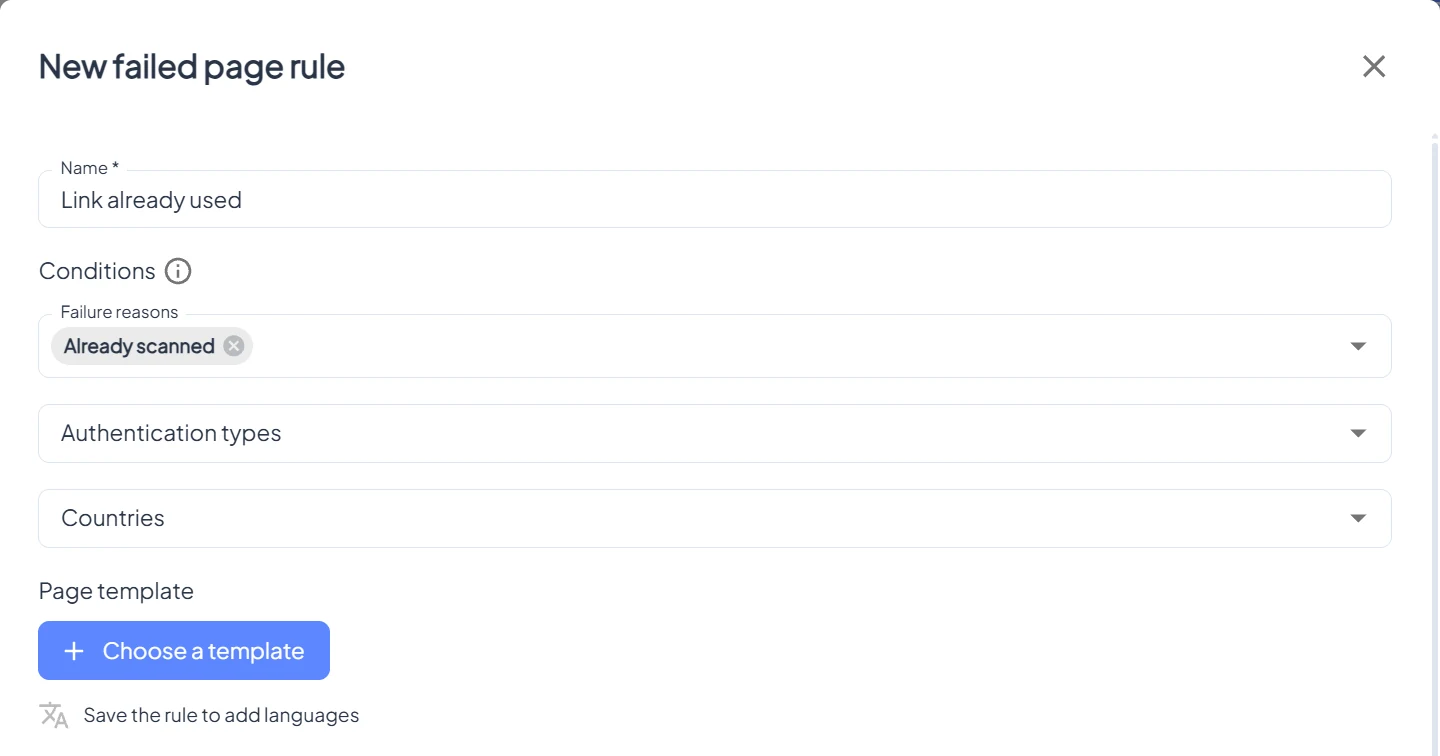
- Under Page template, design the page: for example "This link was already used. Tap the tag again to check the product." Save.
- Add a rule Withdrawn product for Blocked or withdrawn, with your service contact on the page.
- Add a rule for Authentication failed with a warning and a way to report a suspected copy. Limit it with Countries if the contact differs by market.
- Drag the rules into order. The first rule that matches a failed scan wins; scans that match none show the asset's unverified page.
- Add languages to each rule's page if your customers need them (Translate the verification page).
- For every product line at once, add the same rules in System → Settings, under the global unverified page template.