Catalog
12 Verification page templates
The page your customer lands on after a scan is your brand moment. Each asset decides what it looks like when the product is verified, and when it is not.
本章节暂未提供中文版本,您正在阅读英文版本。
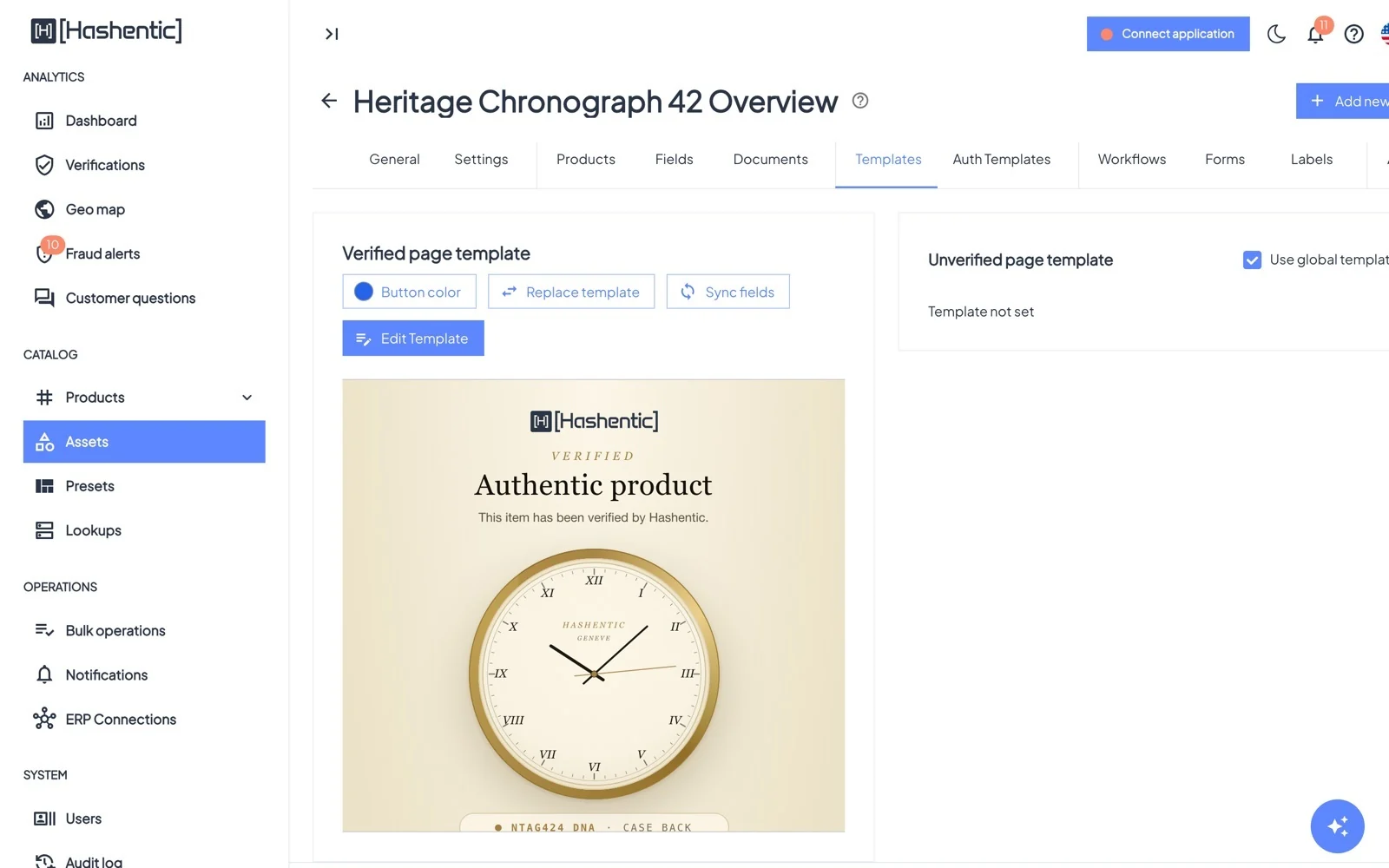
Ways to build a page#
Templates gallery
Block builder
Custom HTML
External website · AI Powered
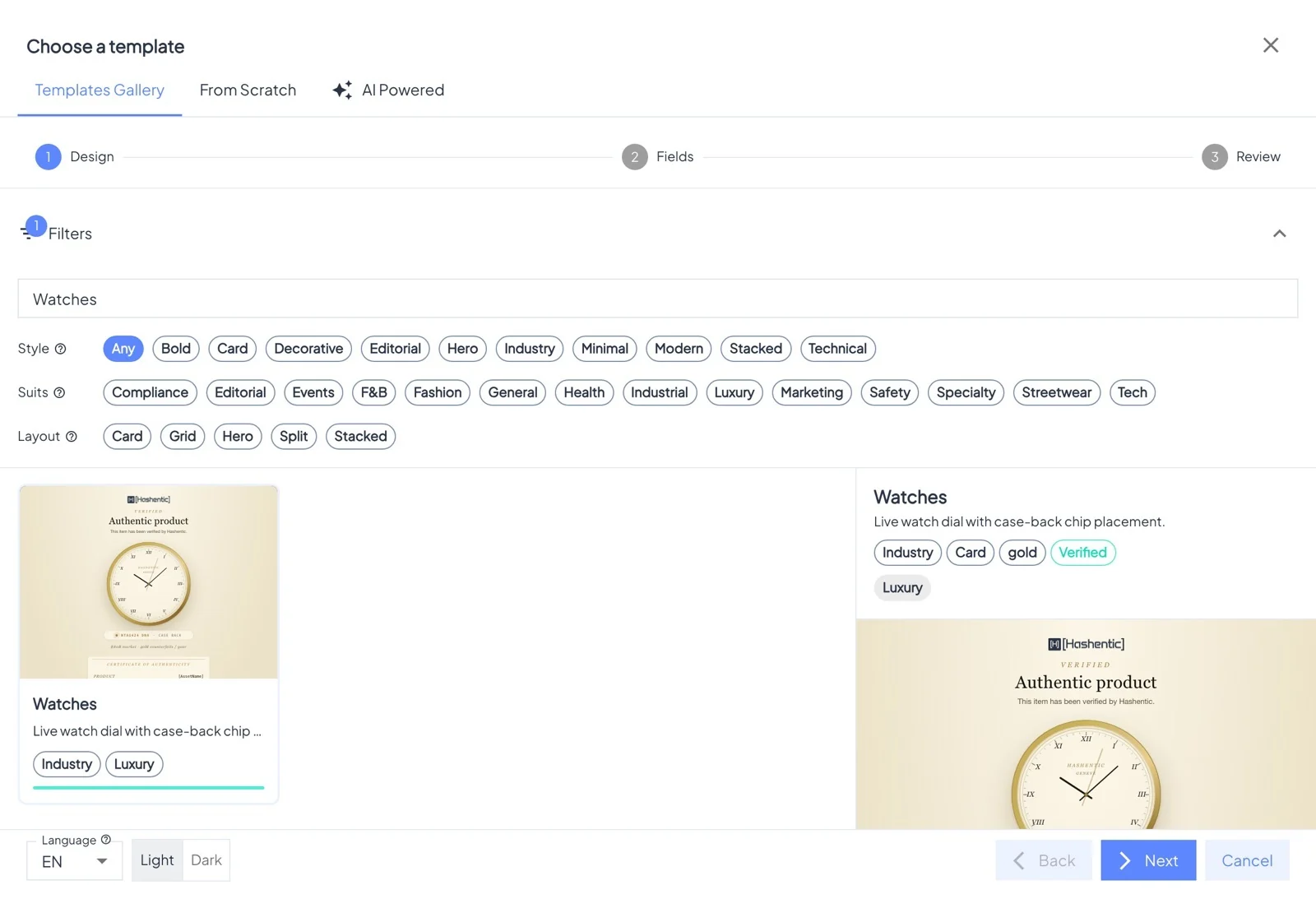
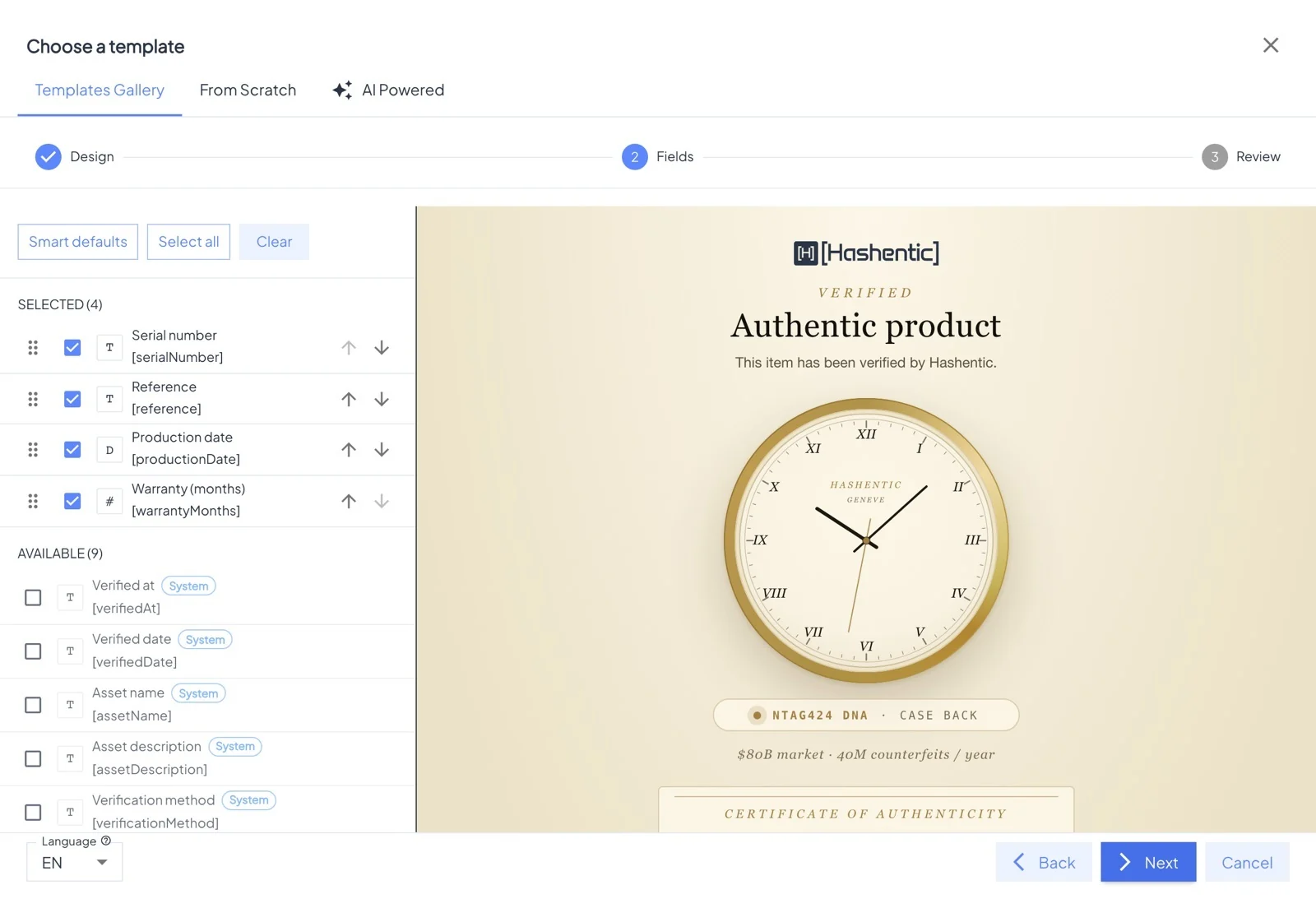
More control#
- Button color: color of the AI-assistant and documents buttons on the page; empty uses your brand color.
- Unverified page template: per asset, or Use global template from Settings; failed page rules can replace it for certain failures.
- Sync fields: refresh a template after you add or rename fields.
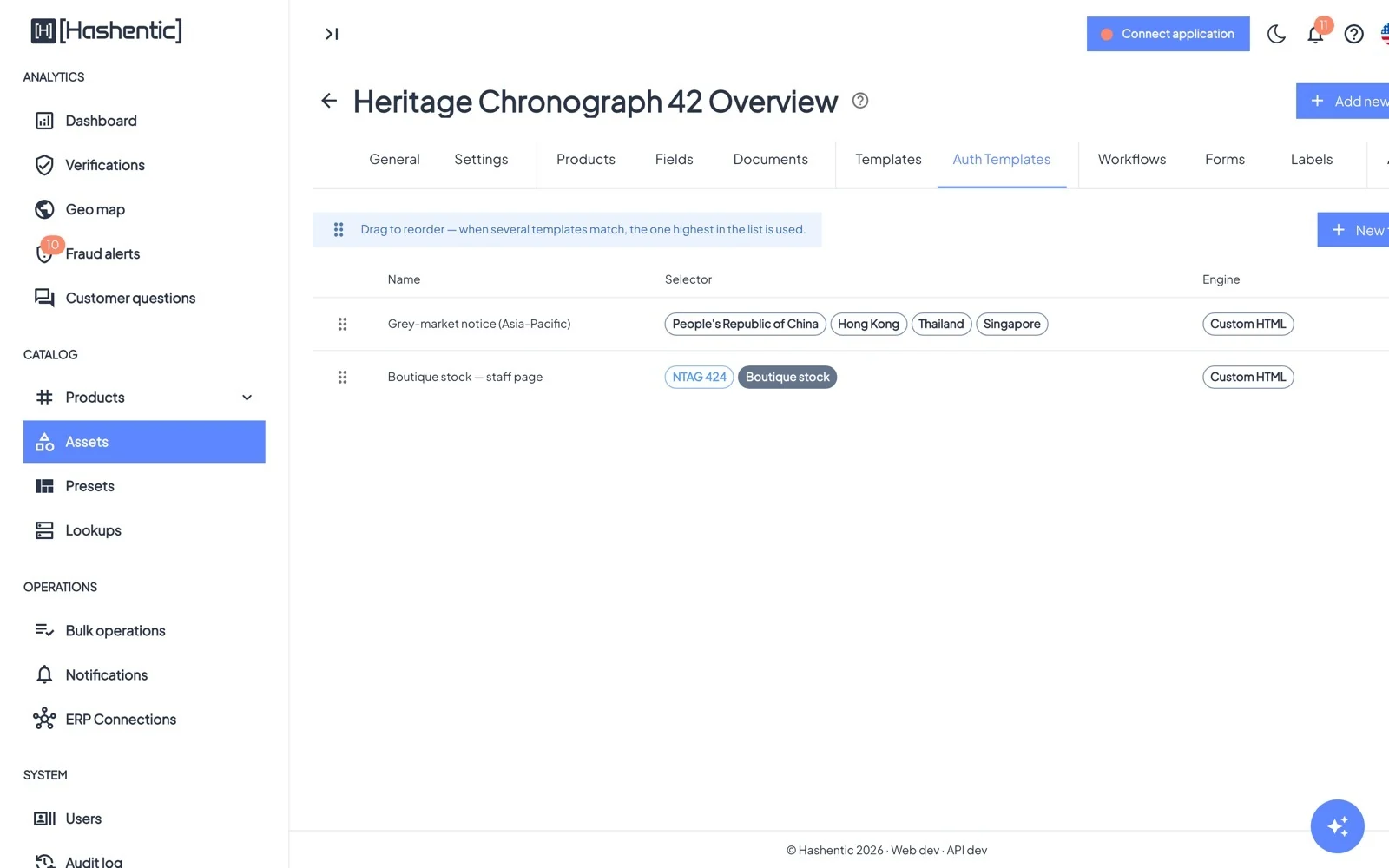
- Auth templates: alternative verified pages chosen per scan by tag type, product label or the scanner's country, for example a notice for scans outside your markets.
Languages#
Every page template can have versions in other languages: the asset's verified and unverified pages, each auth template, each failed page rule and the global unverified page in Settings. Visitors see the language their browser prefers. If there is no version in that language, they see the base content.
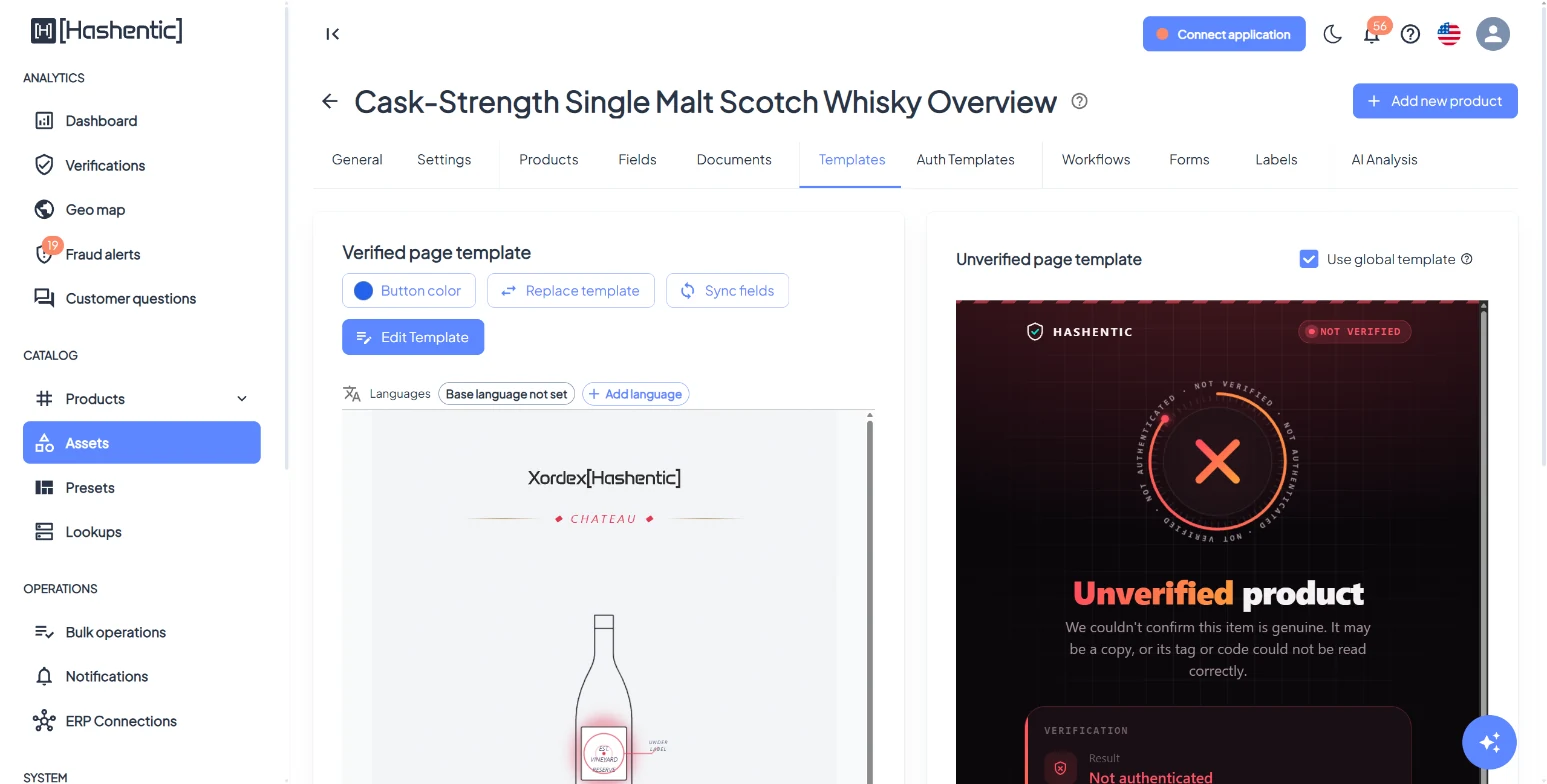
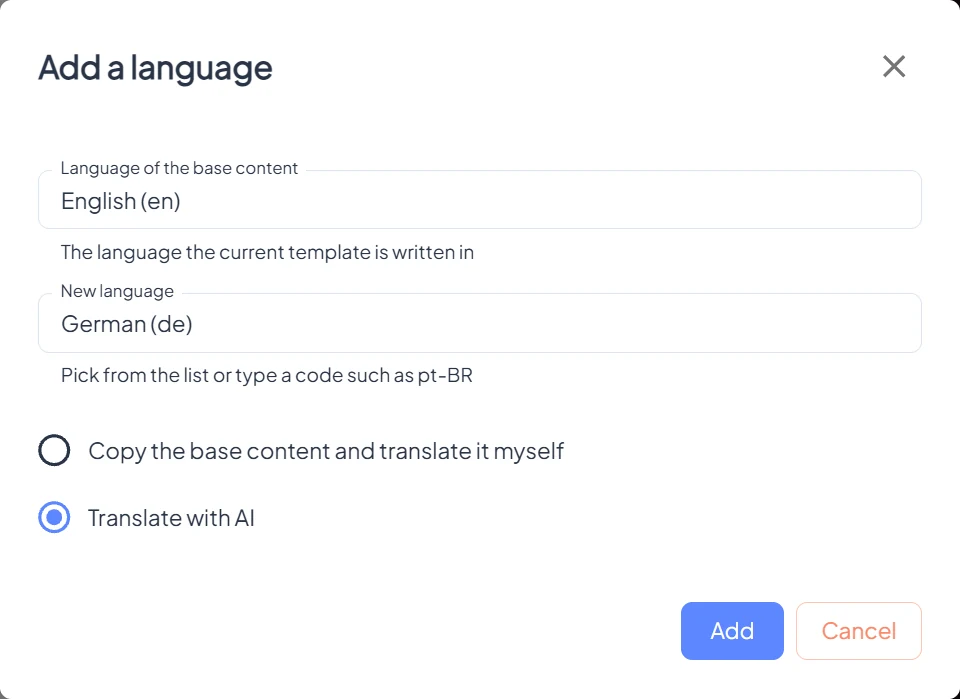
- The Languages bar under a template shows the base language and each version. Add language asks once for the Language of the base content, then for the New language: pick it from the list or type a code such as
pt-BR. - Copy the base content and translate it myself starts from a copy. Translate with AI translates the texts and keeps the layout, images, links and placeholders; anything it could not translate stays as in the base content. AI translation is not available for templates that show an external website.
- Open a language to Edit it, refresh it with Translate again with AI (your edits to that language are replaced) or remove it with Delete language.
- Up to 10 languages per template. The button color is the same in every language.
- A regional browser language falls back to the language itself: a visitor with pl-PL sees the pl version, a visitor with de-AT the de version.
Failed page rules#
The unverified page can change with the reason a scan failed, the type of tag or code, and the scanner's country. The Failed page rules sit below the auth templates on the asset's Auth templates tab; rules for all products are in System → Settings, under the global unverified page template.
A rule can look at three conditions:
- Failure reasons (Appendix A):
- Already scanned: a one-time NFC link was opened again.
- Blocked or withdrawn: the product or this tag is blocked.
- Internal use only: the product line is limited to internal checks.
- Authentication failed: every other reason, such as an unknown code, a wrong signature or a counter mismatch.
- Authentication types: the type of tag or code the link belongs to, known even for tags that were never registered.
- Countries: from the scanner's internet address; needs the Geolocation analytics license feature.
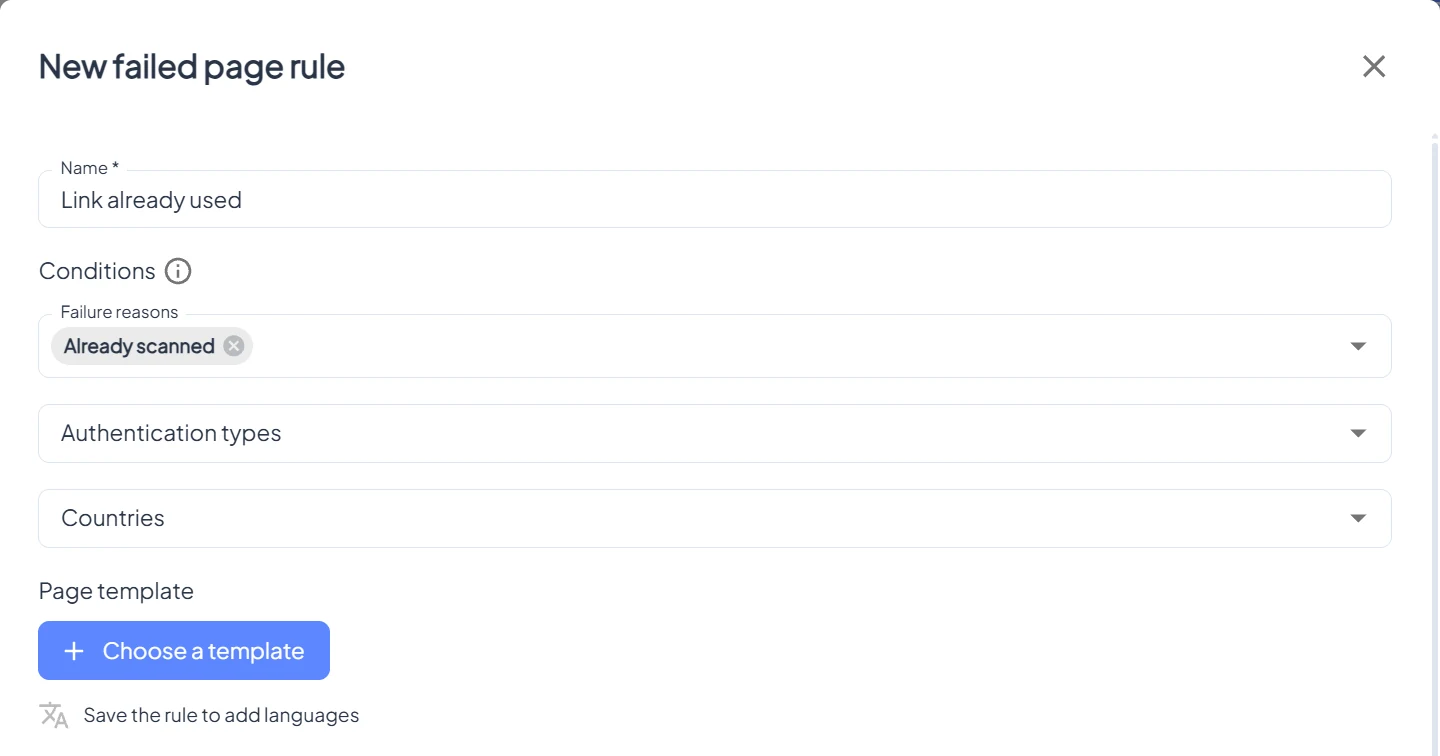
Working with rules:
- New rule asks for a Name, the Conditions and the Page template. All conditions must match; an empty condition matches everything (Any failure, All).
- The first matching rule wins: drag rows to change the order, and open a rule to change it.
- The page of each rule can have its own languages.
- Product labels are not offered: a failed scan cannot prove which product it belongs to.
A failed scan shows the first of these that applies:
- The asset's failed page rules, first match.
- The asset's own unverified page template.
- The failed page rules in Settings, first match.
- The unverified page template in Settings.
- The built-in page, in the visitor's language.
With Allow already verified asset page turned on, repeat scans of secure tags keep showing the designed product page with a notice instead of a page for Already scanned.