Guide · Marketing
26 Design the verification page
Pick a design from the gallery, choose what it shows, and preview it before customers see it.
Dieses Kapitel ist noch nicht in Deutsch verfügbar, daher lesen Sie die englische Version.
- Open the asset and go to the Templates tab. Under Verified page template click Choose a template.
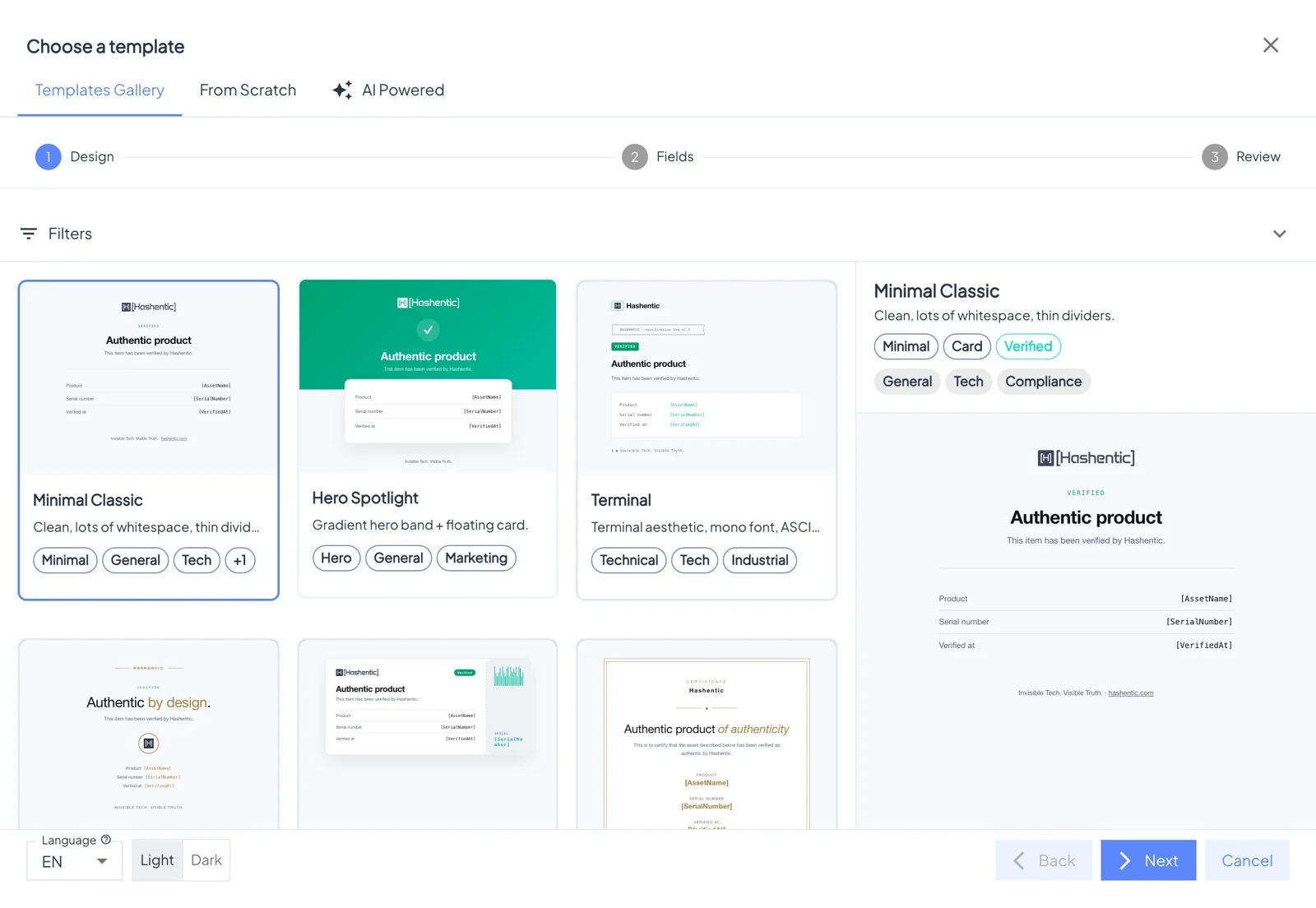
- Click a design to preview it. Switch between Light and Dark and the page language, then click Next.
- On the Fields step, tick the fields to show and order them with the arrows. Smart defaults picks a sensible set. Click Next.
- On Review, check the result and click Apply.
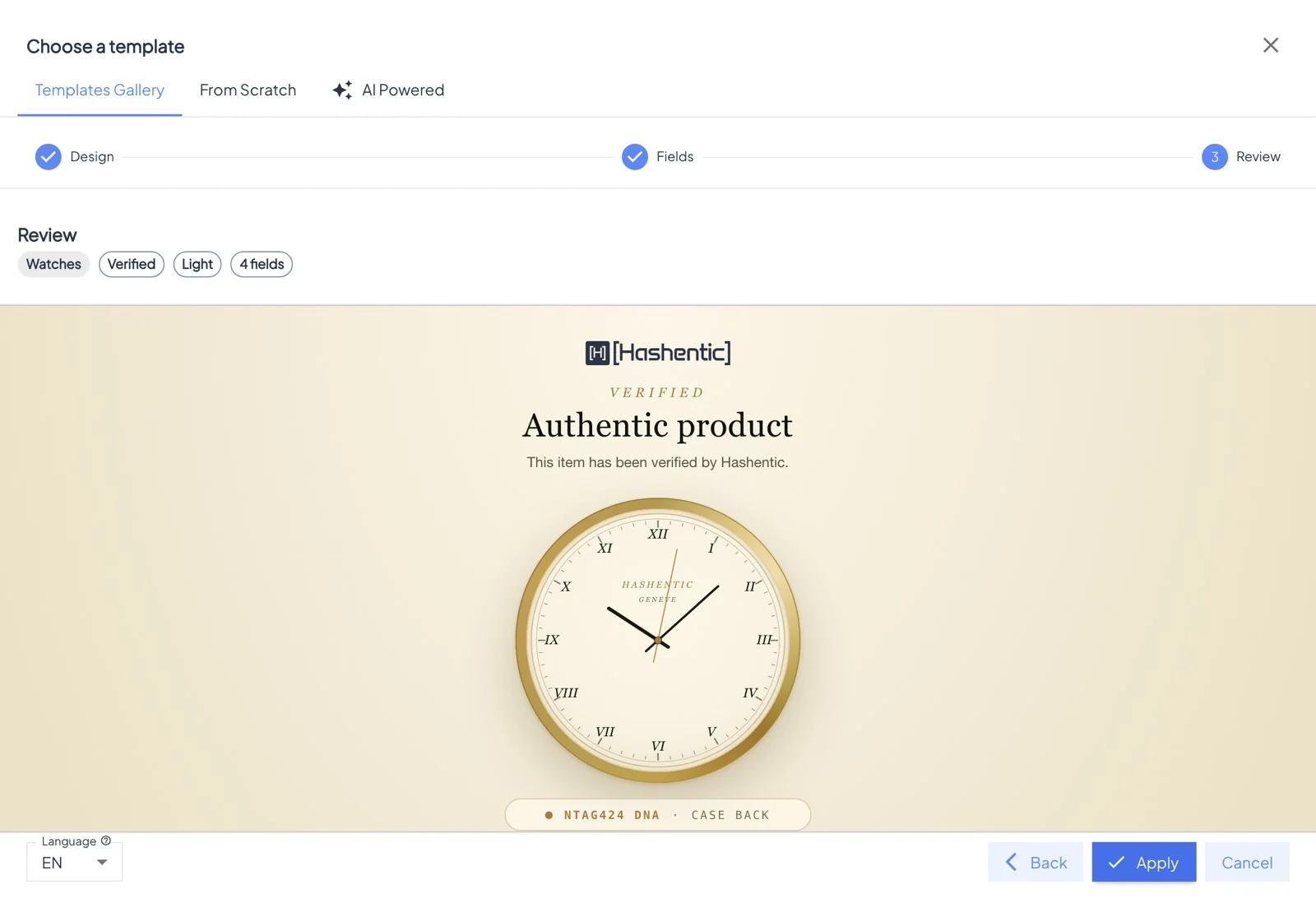
- Optional: set the Button color for the documents and assistant buttons, or click Edit Template to adjust texts and images in the block builder.
- For failed scans, keep Use global template (designed in System → Settings) or design a page just for this asset.
- Check the result on any product: open it and click Preview.