Overview
4 Finding your way around
The admin panel works in any modern browser. The menu on the left is grouped by task; the bar at the top holds the tools you need on every page.
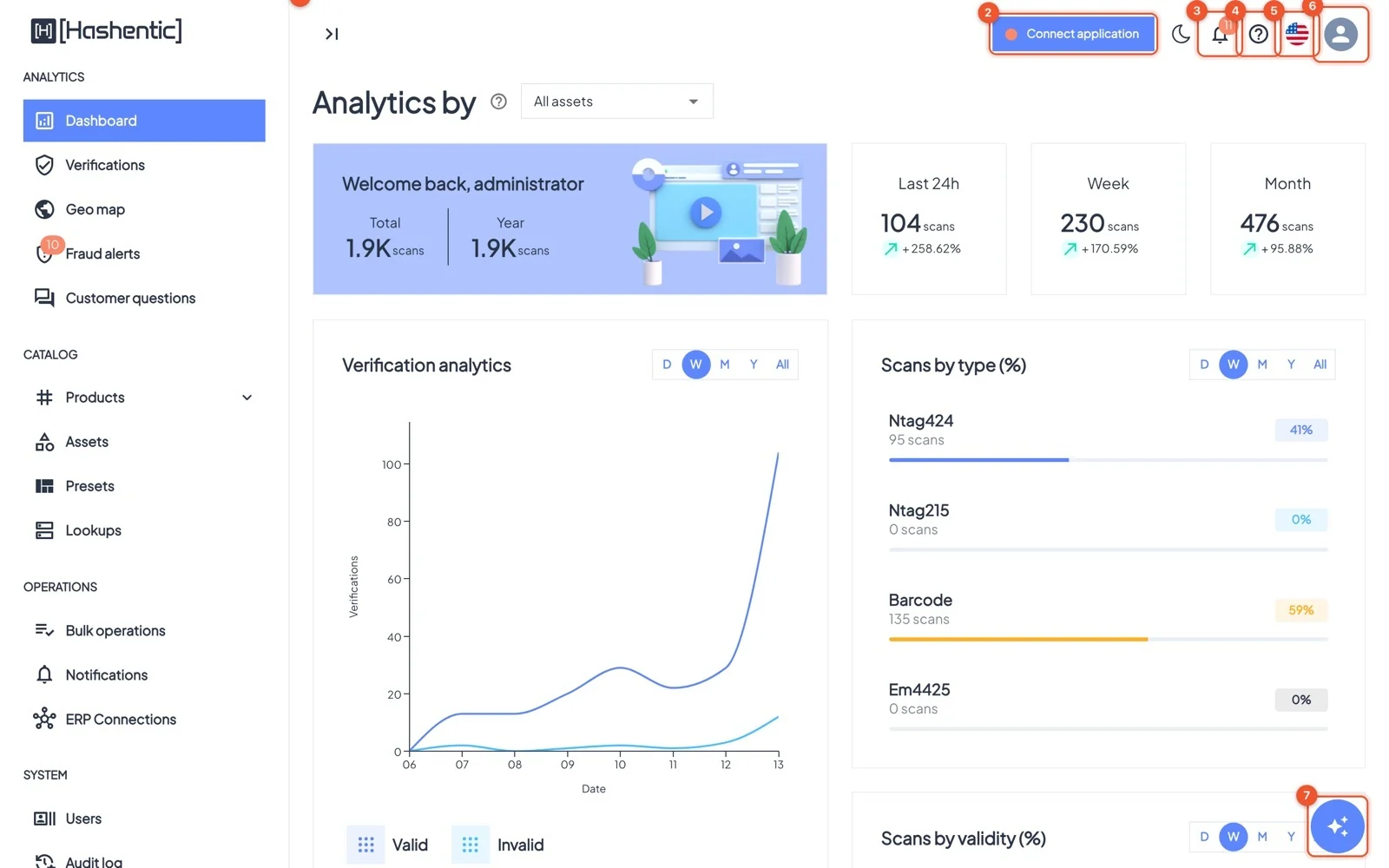
The menu#
- Analytics: Dashboard, Verifications, Geo map, Fraud alerts, Customer questions.
- Catalog: Products (List, Add new, Update), Assets, Presets, Lookups.
- Operations: Bulk operations, Notifications, ERP Connections.
- System: Users, Audit log, Applications, Settings, Branding, License.
- At the bottom: Integration guide, Mobile app, Setup desktop utility and theme settings.
Handy everywhere#
- The ? next to a page title explains the page; Show app tour replays the guided tour.
- Lists share the same tools: a search box, Add filter for precise filters, sortable columns and page size.
- Switch light/dark mode with the moon icon and the language with the flag.
- The sparkle button at the bottom right opens the AI assistant.
Signing in#
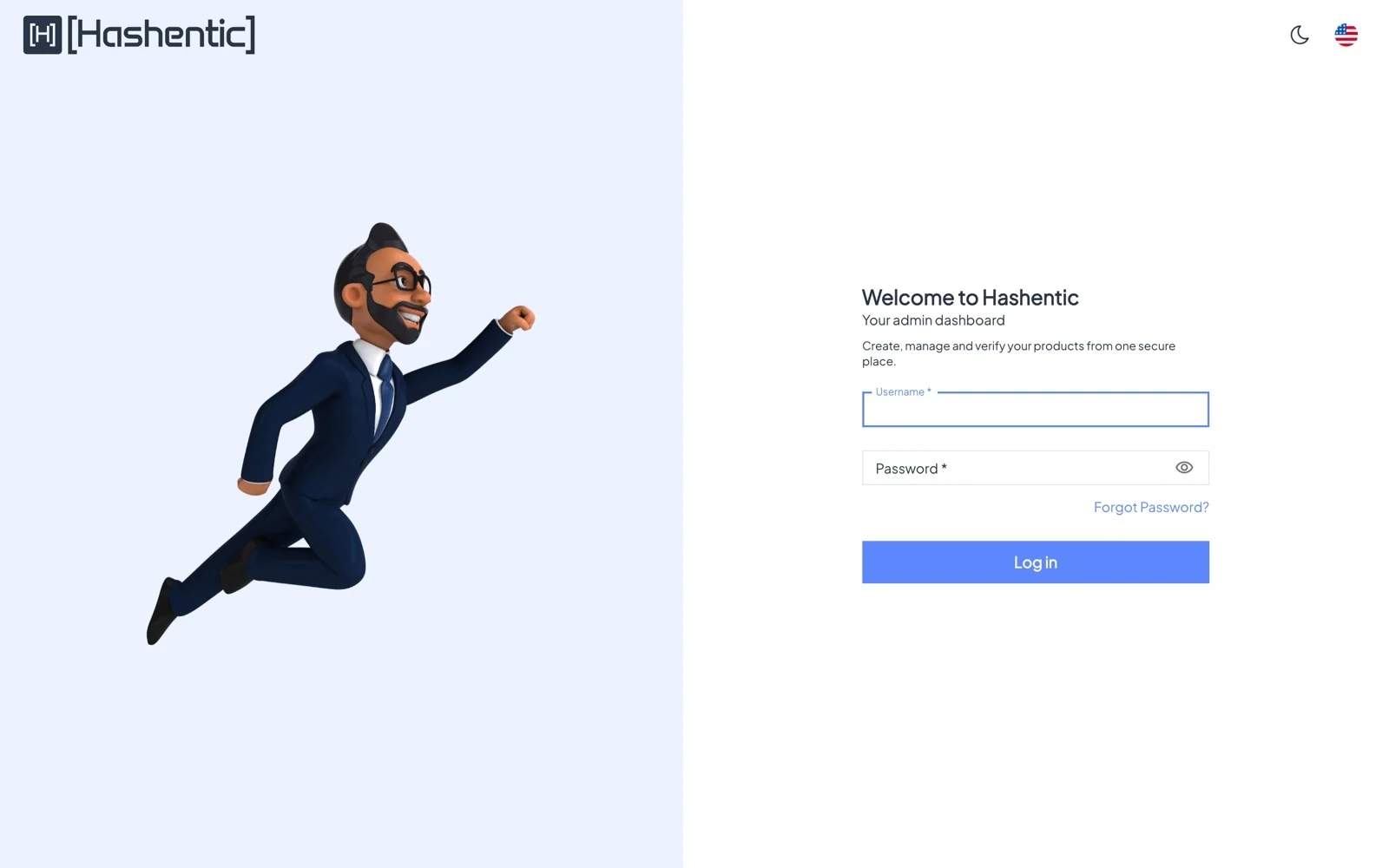
Open your company's Hashentic address and sign in with your username and password. Depending on your company's settings you may also see Continue with Google, and you may be asked for a code from your authenticator app (two-factor authentication).
Forgot your password? Click Forgot Password? and follow the link sent to your email. After several failed attempts the account is locked for a few minutes.
The first time you sign in, a short tour points out the main areas. You can replay it any time.