Applications
22 Mobile app and Desktop utility
Two companion apps take Hashentic away from the desk: the mobile app for staff in stores, warehouses and service centers, and the Desktop utility for writing NFC tags on the production line.
The mobile app#
Available for Android 8.0 and later and for iPhone with iOS 16.4 and later. Reading and writing tags needs a phone with NFC. The app follows the phone's language (English or Russian) and supports light and dark themes.
For everyone#
- Is it genuine? Anyone can check a product without an account: scan the QR code, tap Read NFC tag, or type the link. The app checks that the link belongs to a registered Hashentic workspace before opening the brand's page.
For staff#
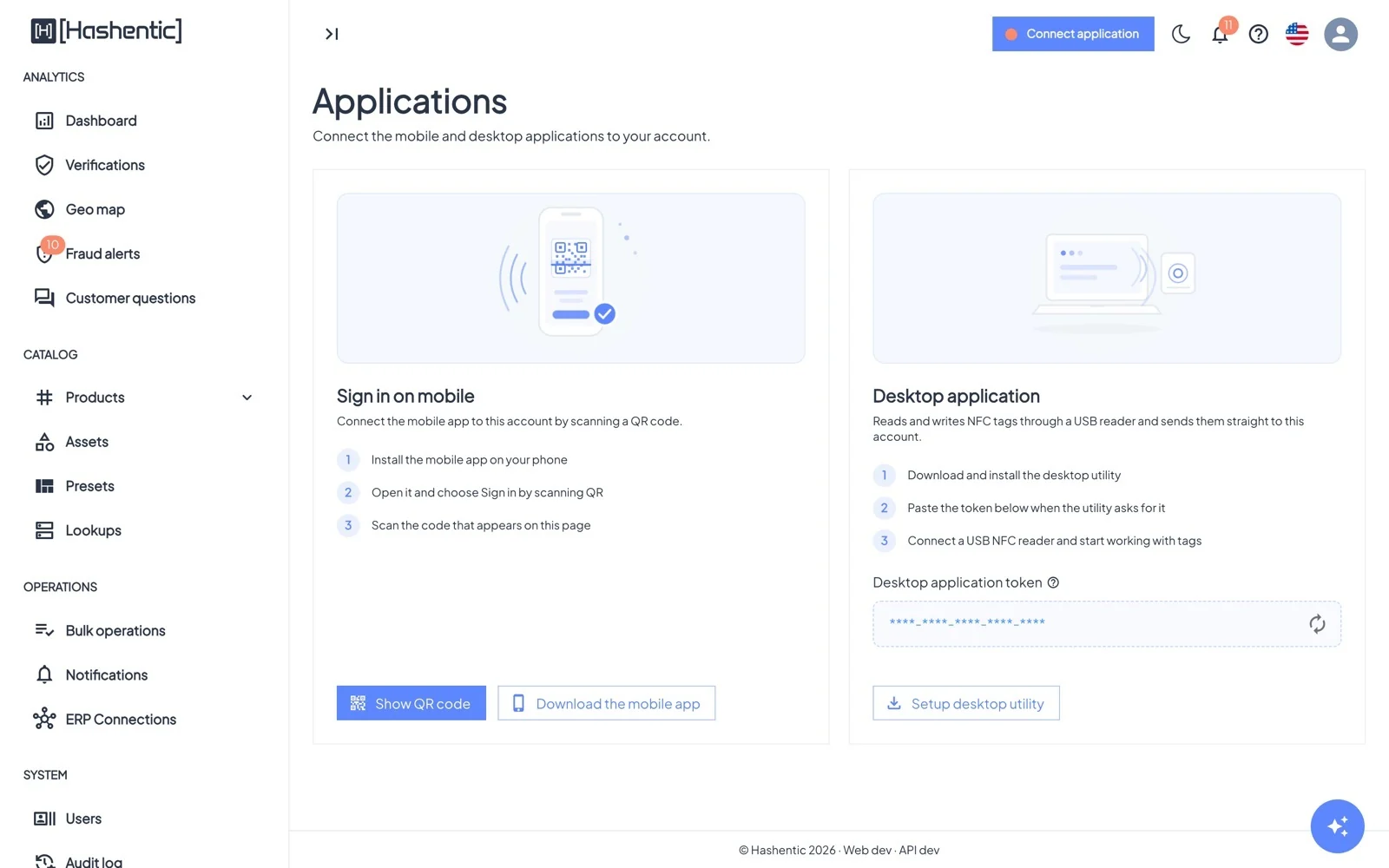
- Sign in with your workspace address, username and password, or by scanning the QR code from Applications → Sign in on mobile. Two-factor authentication is supported, and you can keep several accounts.
- App lock with a 6-digit PIN and/or Face ID or fingerprint.
- Scan a product to see a green Verified or red Verification failed result with the reason and public fields, then open the product or Save for batch update.
- Products: search by identifier or tag UID, filter by asset, label, tag type and status, and open the product card with its tags, fields and history.
- Create products and edit fields (secure tags may ask you to tap the tag first).
- Write NFC tags (NTAG 424, NTAG 215, EM4425) straight from the phone, with cryptographic read-back. Interrupted writes can be finished or discarded later.
- Block, unblock or delete products, according to your permissions.
- Open a product from the web: scan the QR for the mobile app shown on a product page.
- Partner roles (Authority, Recycler, Repairer) see and edit only the passport fields meant for them.
The Desktop utility#
A small Windows and macOS app that connects a USB NFC reader to your account; you keep working in the browser. Download it from Setup desktop utility, sign in with Register desktop utility or the Desktop application token, and plug in the reader. It runs in the background from the system tray and shows which account it is connected to. When a new version is available it offers the update and installs it once it is idle, not in the middle of writing a tag. See chapter 16 for writing tags with it.