Features & User Guide
Everything Hashentic can do for your brand, and how to do it: from tagging your first product to answering a counterfeit alert.
Руководство пока недоступно на языке: Русский, поэтому Вы читаете английскую версию.
I
Overview
What Hashentic is, the handful of ideas everything else is built on, and how to find your way around the admin panel.
- 1Hashentic at a glanceHashentic gives every physical product a digital identity that customers can check in one tap. You define your product lines, mark each item with a secure NFC tag or a QR code, and Hashentic verifies every scan, shows the customer a branded page, and tells you where, when and how your products are being checked.
- 2Key conceptsA few terms come up on almost every screen. Learn these and the rest of the admin panel reads naturally.
- 3Roles, permissions and your licenseWhat a person can see and do depends on two things: the permissions on their account and the features in your company's license. If a menu item described in this guide is missing, one of the two is the reason.
- 4Finding your way aroundThe admin panel works in any modern browser. The menu on the left is grouped by task; the bar at the top holds the tools you need on every page.
II
Feature catalog
Every area of Hashentic, one chapter each: what it is for, what you see on screen and what you can do there. Use it as a reference; the step-by-step guides in Part III build on it.
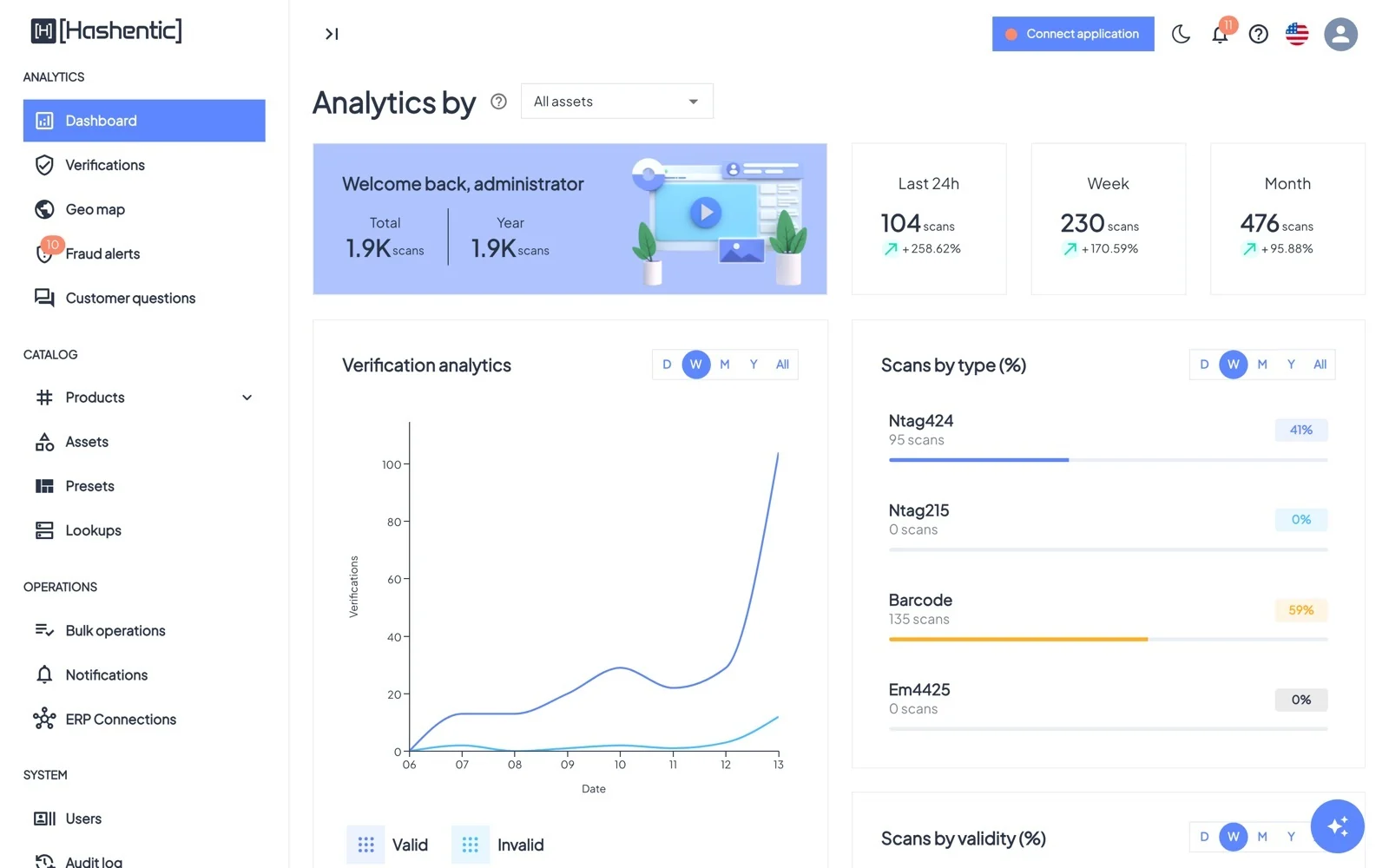
- 5DashboardThe home page: how many genuine scans you get, how that is trending, which carriers customers use and where they are.
- 6VerificationsThe log of scans. Valid shows genuine checks, Invalid shows every scan that failed and why.
- 7Geo mapEvery geolocated scan on an interactive world map, so you can see where your products are checked, and where copies surface.
- 8Fraud & anomaly alertsHashentic watches the stream of scans and raises an alert when a pattern looks like counterfeiting or diversion. The menu badge shows how many alerts are still New.
- 9Customer questionsCustomers who verify a genuine product can ask an AI assistant about it on the verification page: care, warranty, ingredients. This page shows what they ask and how well it was answered, so you can close the gaps in your product information.
- 10ProductsEvery tagged item you have issued. Find any product in seconds, see its scans and history, edit its data, print its code, or block it.
- 11Assets and fieldsAn asset is a product line: the blueprint every item of that line follows. Its page brings together the fields, the verification page, documents, labels, forms, workflows and fraud rules of the line.
- 12Verification page templatesThe page your customer lands on after a scan is your brand moment. Each asset decides what it looks like when the product is verified, and when it is not.
- 13Presets and lookupsTwo tools that keep a large catalog consistent: presets reuse a structure, lookups reuse values.
- 14Labels and formsLabels mark the state of products and tags; forms let customers send you information from the verification page.
- 15WorkflowsWorkflows react to what happens to your products, without anyone watching the screen: block a cloned tag, label a product when its warranty is registered, warn the team about repeated scans, or tell your CRM.
- 16Writing tags and printing barcodesCreating products and giving them their authentication happens in one dialog: Products → Add new. NFC tags are written through a USB reader connected with the Desktop utility; barcodes are generated instantly and exported for printing.
- 17Bulk operations and ERPLarge jobs run in the background and are tracked here. ERP connections bring product data straight from your systems into the tag-writing wizard.
- 18Notifications and audit logNotifications tell you what needs attention; the audit log records who did what.
- 19AI featuresAI helps in four places: it answers your customers, answers you, analyzes your scan data, and drafts configuration for you. It never changes data on its own.
- 20Users and accessGive each person their own account, with exactly the permissions and product lines their job needs.
- 21Settings, branding and licenseWorkspace-wide configuration: how verification links look, security rules, AI switches, fraud sensitivity, your brand identity and your license.
- 22Mobile app and Desktop utilityTwo companion apps take Hashentic away from the desk: the mobile app for staff in stores, warehouses and service centers, and the Desktop utility for writing NFC tags on the production line.
- 23The consumer verification pageWhat your customer experiences after tapping the tag or scanning the code: an instant answer, in your brand's design, and a reason to stay.
III
Step-by-step guides
Short recipes for the jobs you will do most often, from securing your account to answering a counterfeit alert. Each one names the exact buttons to click.
- 24Secure your accountTurn on two-factor authentication so a stolen password is not enough to get into your account. It takes two minutes and an authenticator app such as Google Authenticator or Microsoft Authenticator.
- 25Set up a new product lineBefore the first product can be tagged, Hashentic needs to know what the product line looks like. We will set up the Heritage Chronograph watch from the examples.
- 26Design the verification pagePick a design from the gallery, choose what it shows, and preview it before customers see it.
- 27Translate the verification pageShow the product page in your customers' languages. AI drafts the translation; you check it and save.
- 28Show a different page when a scan failsTell customers in plain words what happened: a reused link, a withdrawn product and a suspected copy each get their own page.
- 29Create QR-coded products and print labelsCreate a batch of products from a spreadsheet and print a sheet of QR codes, with no special hardware.
- 30Write NFC tags with the Desktop utilitySecure NFC tags are written at your production or packing station with a USB reader. You need the Desktop utility, a USB NFC reader and blank tags.
- 31Investigate a fraud alertA Critical alert has appeared: the same watch was scanned in Paris and, two hours later, in Istanbul, with an older tag counter. Here is how to work it.
- 32Block cloned tags automaticallyLet Hashentic act on its own when the fraud engine is sure: block the tag and alert the team, at any time of day.
- 33Collect warranty registrationsTurn the moment of verification into a registered customer: a short form after the scan, and the product marked as sold.
- 34Add a team memberExample: Lucas runs the packing station. He needs to create and tag products, but not change settings or see customer questions.
- 35Update many products at onceExample: 40 card holders were moved to the pop-up store and their Retail status must change. Fields need the Update stage to be editable.
- 36Help the AI answer your customersThe assistant on the verification page can only be as good as the information you give it. Use what customers ask to fill the gaps.
- 37Connect the mobile appSign in on your phone in seconds by scanning a code from the admin panel; no typing of server addresses or passwords.
+
Reference
Lists to look things up in: why scans fail, what you can put into a page template, languages and limits, and answers to common questions.
- AVerification failure reasonsThe Reason shown on the Invalid tab of Verifications, and what it usually means.
- BTemplate placeholdersIn block-builder and custom HTML templates, words in square brackets are replaced with real values when the page is shown. Names are not case-sensitive; unknown placeholders stay as they are.
- CLanguages, formats and limits
- DTroubleshooting and FAQ