Guide · Operations
29 Create QR-coded products and print labels
Create a batch of products from a spreadsheet and print a sheet of QR codes, with no special hardware.
Эта глава пока недоступна на языке: Русский, поэтому Вы читаете английскую версию.
Лицензия Bulk write for steps 2–7
- Prepare a CSV or Excel file with one row per product. Name the columns like the asset's fields (the property names, such as batchNumber) and they will be matched automatically.
- Open Catalog → Products → Add new, choose Barcode and the Multiple mode tab.
- Pick the asset in Asset name, choose Upload file and select your file. (No data per product? Choose Generate by number and enter a count.)
- Click Next. Check that every field is mapped to the right column in Set up fields, then Next again.
- Fix any highlighted rows with the edit icon, then click Generate. The codes are created in the background; you can close the dialog.
- Open Operations → Bulk operations. When the run shows Completed, click Download barcodes.
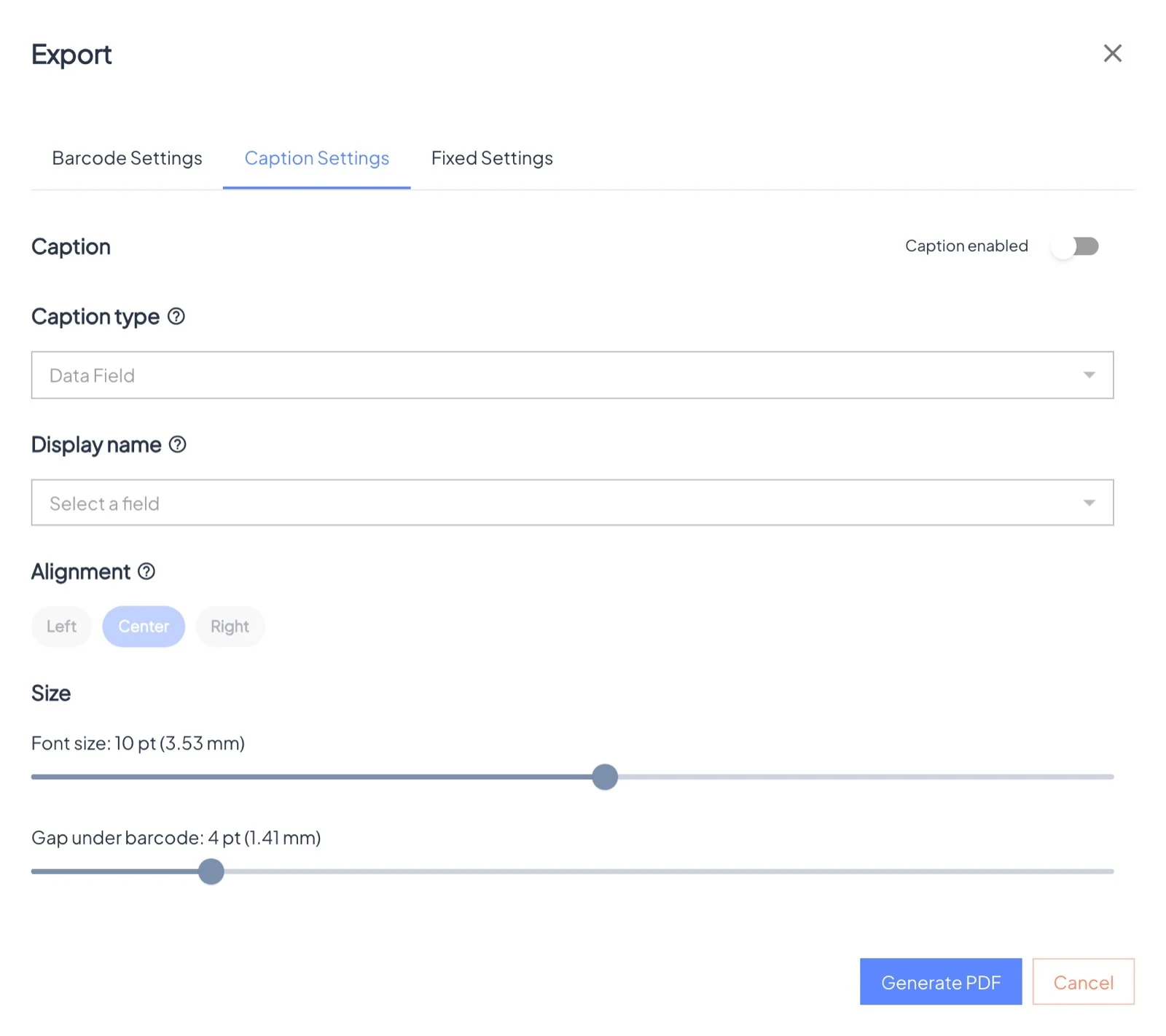
- In Export, choose PDF, QRCode and the Public URL version, pick a size (Medium suits most labels), and on Caption settings print a field such as the batch number under each code. Check the grid on Fixed settings and click Generate PDF.