Analytics
6 Verifications
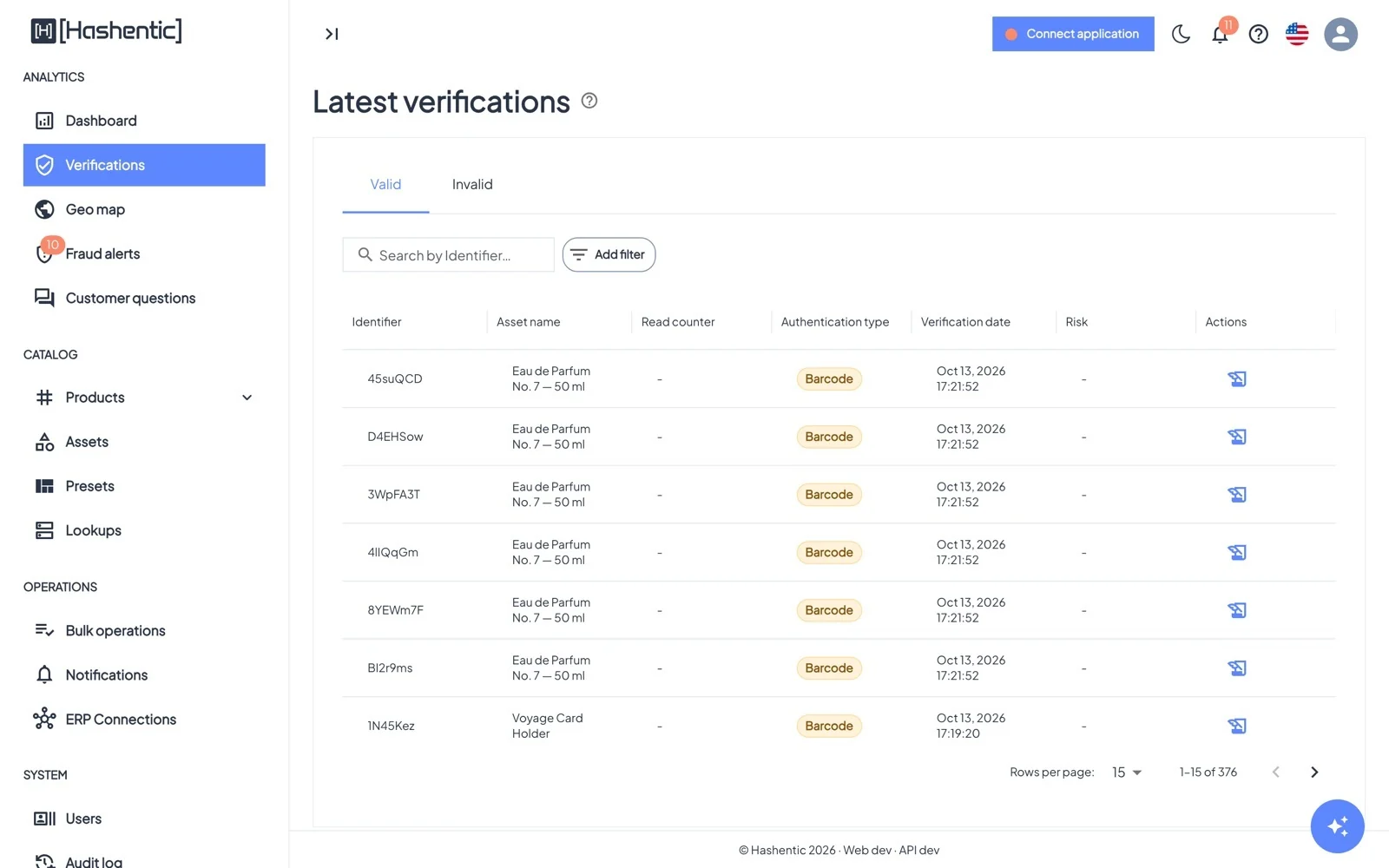
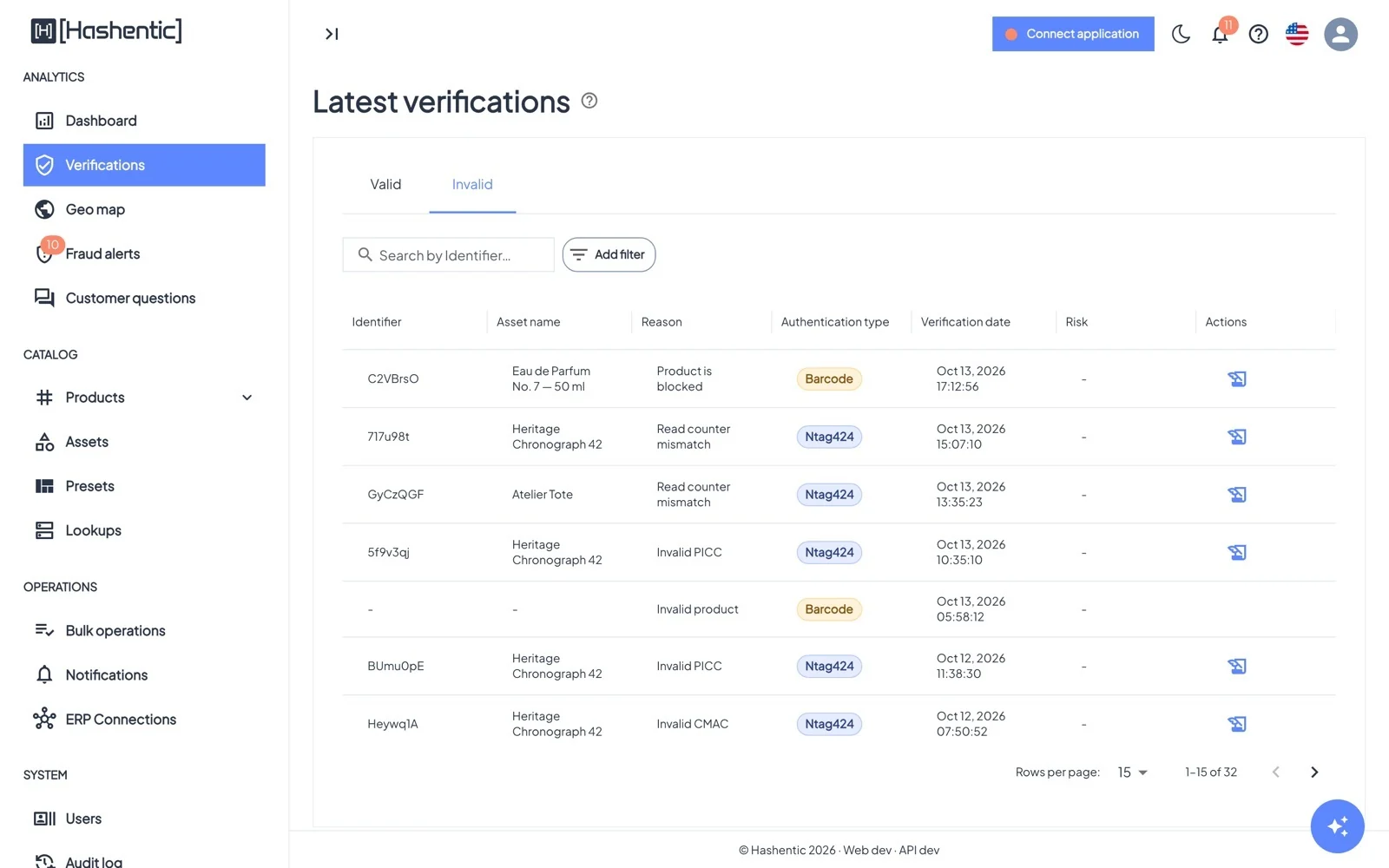
The log of scans. Valid shows genuine checks, Invalid shows every scan that failed and why.
Эта глава пока недоступна на языке: Русский, поэтому Вы читаете английскую версию.
Columns#
- Identifier and Asset name of the product.
- Read counter of NFC tags, which rises with every tap ("–" for barcodes). On the Invalid tab this is the Reason.
- Authentication type: Ntag424, Ntag215, Em4425 or Barcode.
- Risk: VPN, Proxy, Tor or Threat when the scan came from a flagged network.
Finding scans#
- Search by identifier, or use Add filter: Identifier, UID, Authentication type, Verification date, Asset name, Country code, and on the Invalid tab, Reason.
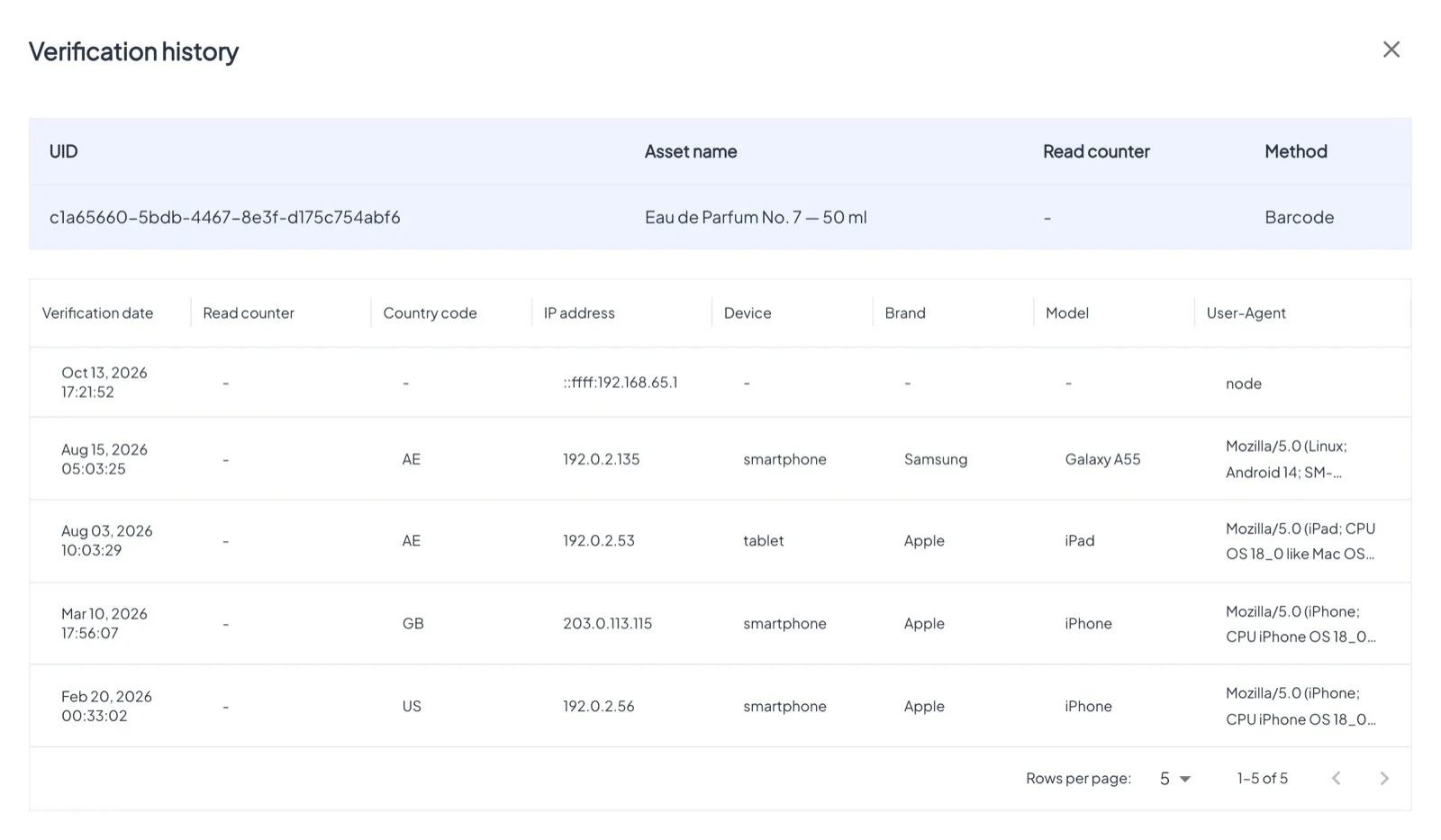
- Click a row for Verification info: country, IP address, device, brand, model, browser and the product's field values.
- The clock icon opens the Verification history of that tag or code: every scan, in order.