System
21 Settings, branding and license
Workspace-wide configuration: how verification links look, security rules, AI switches, fraud sensitivity, your brand identity and your license.
Эта глава пока недоступна на языке: Русский, поэтому Вы читаете английскую версию.
Settings#
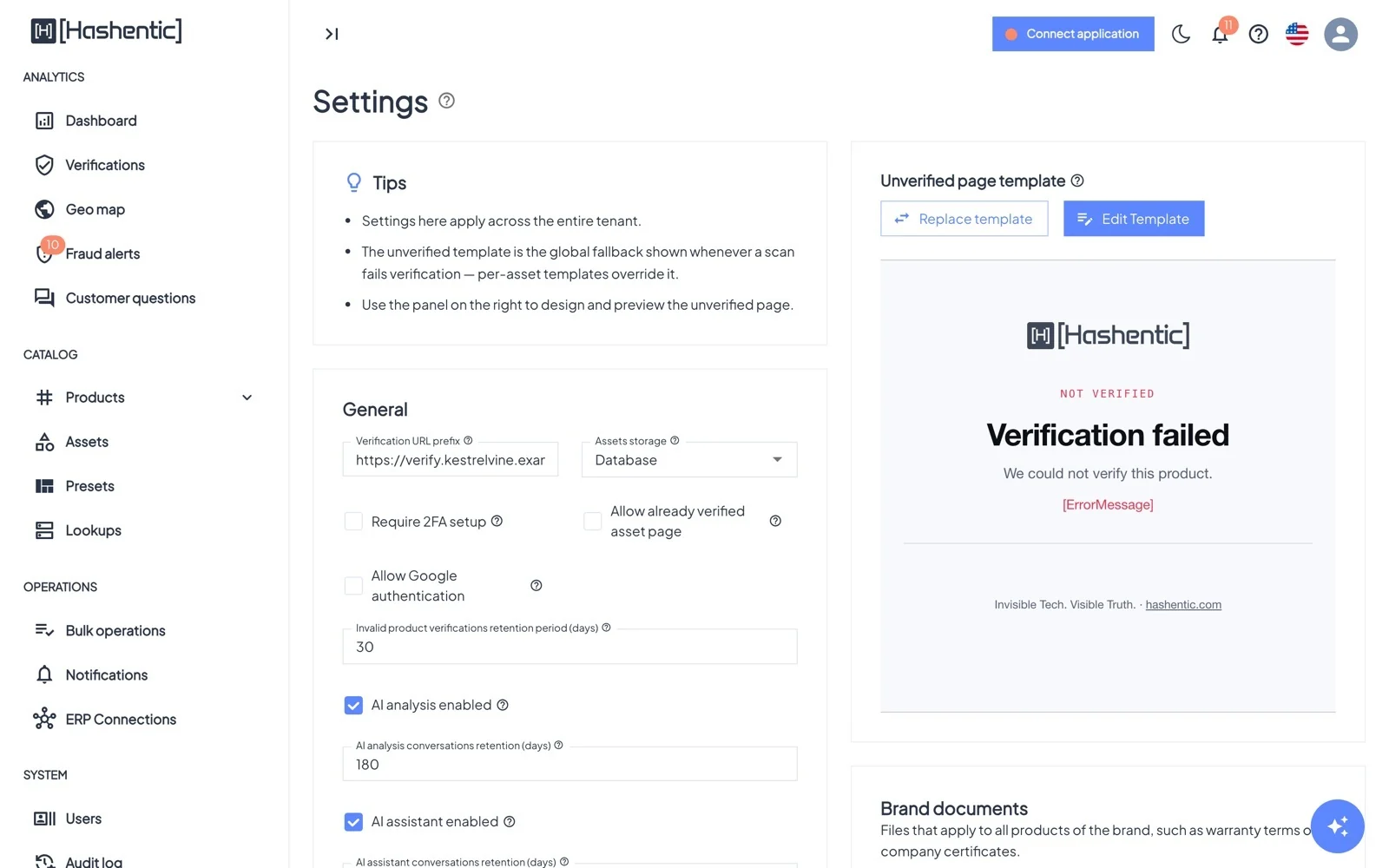
| Setting | What it controls |
|---|---|
| Verification URL prefix | The public address at the start of every verification link and QR code, such as https://verify.your-brand.com/v. Must use https. |
| Default NTAG 424 key | The key written into new NTAG 424 tags. Changing it affects only tags written afterwards. |
| Assets storage | Where integrity records are kept: Database or Blockchain. Fixed once the first asset or product exists. |
| Require 2FA setup | Every user must set up two-factor authentication at sign-in and cannot turn it off. |
| Allow Google authentication | Existing users can sign in with the Google account that matches their email. |
| Allow already verified asset page | Show the designed product page on repeat scans of secure tags. When on, it applies to every asset; when off, each asset can still turn it on. |
| AI analysis / AI assistant enabled · Answer customer questions on the verification page | Switch the AI features on, with retention periods and a daily limit for customer questions. |
| Maximum document file size (MB) | Upload limit for documents, 1–25 MB (default 10). |
| Invalid product verifications retention period (days) | How long failed scans are kept (default 30). |
| Verification alerts | A Critical notification when a product has more failed scans in an hour than the threshold (default 5), and a Warning when a single tag reaches a scan count (default 1,000). |
| Fraud & anomaly detection | On/off and every threshold of the fraud engine: travel speed and distance, velocity window and count, gray-market scans and window, invalid-burst window, alert cooldown, High and Critical score cutoffs. |
On the right of the page you also design the Unverified page template (shown for failed scans of assets without their own) with its languages, add Failed page rules that pick a different failed page for all products by failure reason, tag type or country (Verification page templates), manage Brand documents for AI answers, and maintain the Workflows URL allowlist of addresses workflows may call.
Branding#
Лицензия White-label branding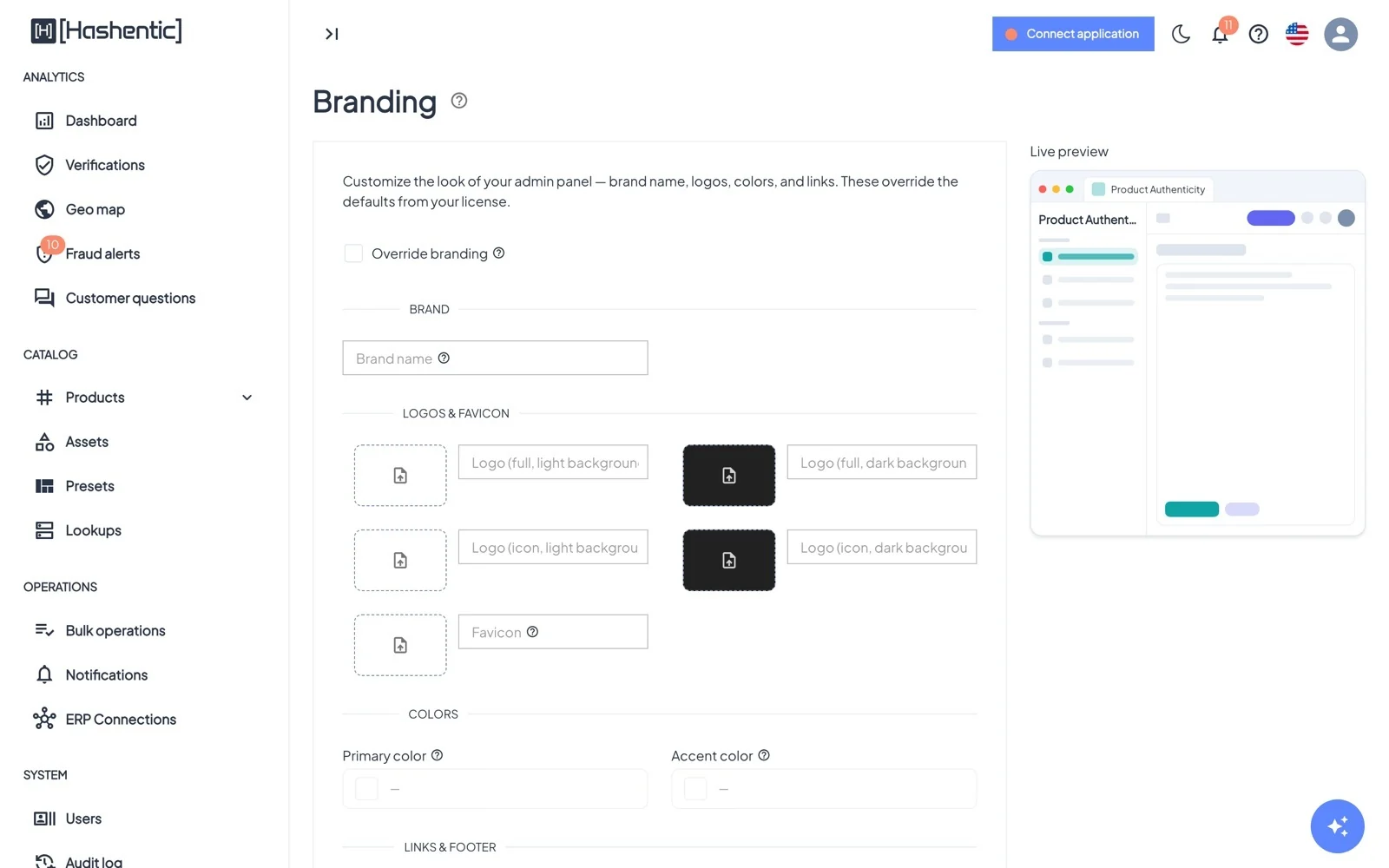
Turn on Override branding to replace the defaults of your license with your own:
- Brand name, shown in the admin panel, page titles and verification pages.
- Logos (full and icon, for light and dark backgrounds) and a favicon. The icon logo is also embedded in QR codes.
- Primary and accent colors.
- Links: website, support, privacy policy, terms; footer and "Powered by" text on verification pages.
License#
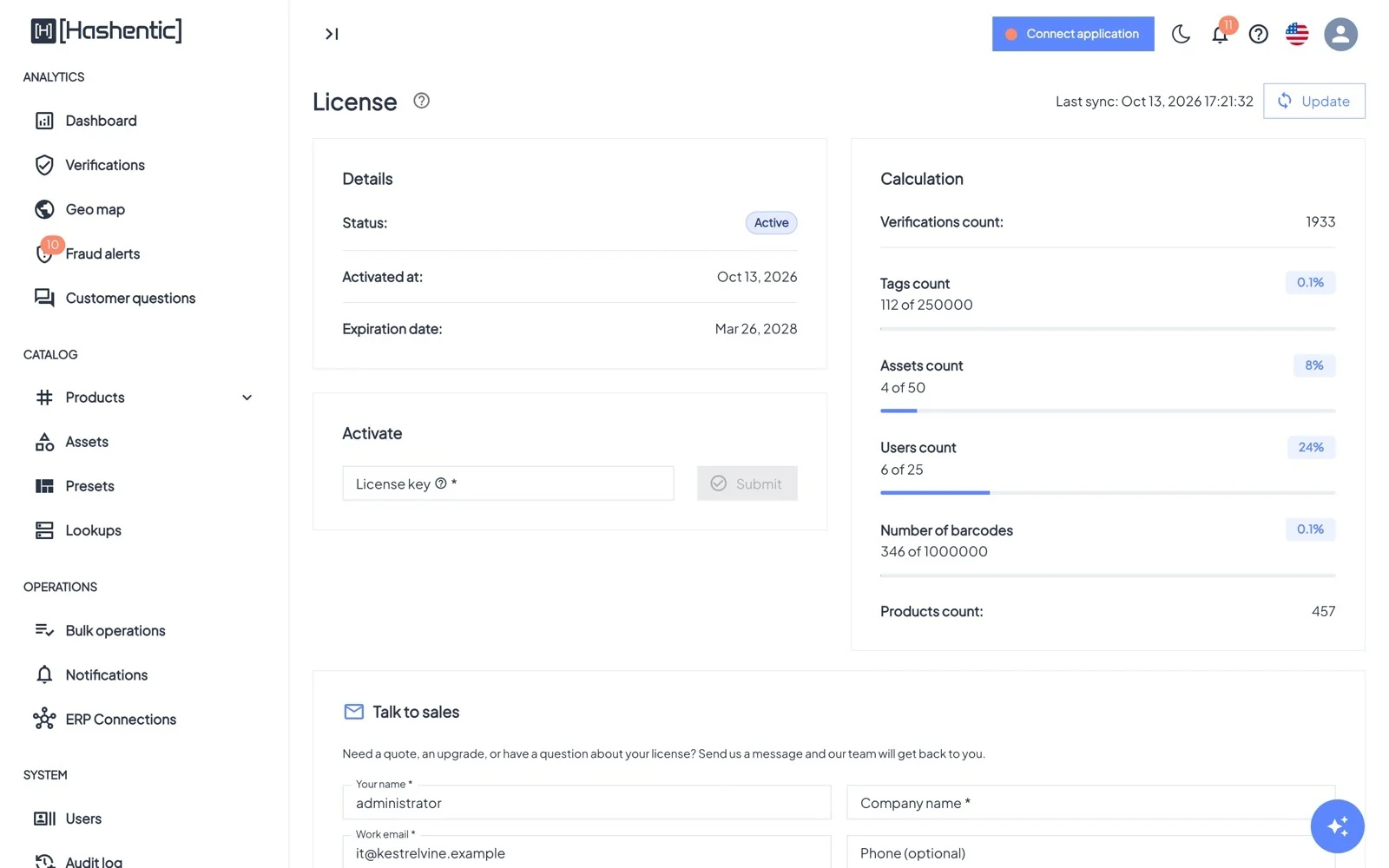
- Details: status (Active, Expired, Blocked, Stale, Inactive), activation and expiry dates.
- Activate: paste a license key (format XXXX-XXXX-XXXX-XXXX-XXXX). Activation links from email are applied automatically after sign-in.
- Calculation: verifications, tags, assets, users, barcodes and products, with progress bars against your limits.
- Update fetches the latest version of your license; Talk to sales sends a message to the Hashentic team.
Your profile#
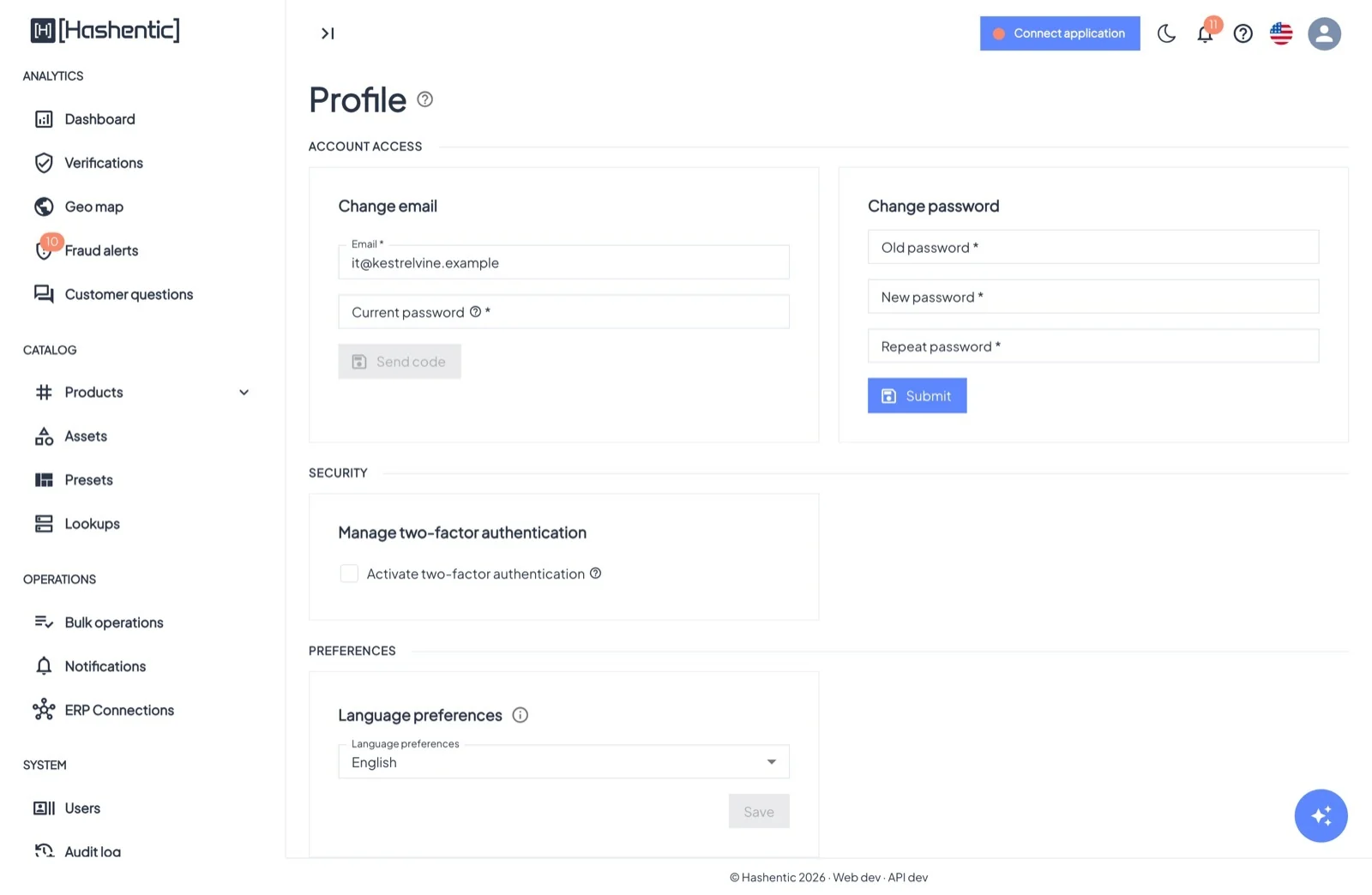
- Account access: change your email (confirmed with a code sent to the new address) and your password.
- Security: Activate two-factor authentication with any authenticator app, and manage your 10 one-time recovery codes.
- Preferences: your language for the admin panel and for emails.