Guide · Operations
29 Create QR-coded products and print labels
Create a batch of products from a spreadsheet and print a sheet of QR codes, with no special hardware.
Este capítulo todavía no está disponible en Español, por lo que está leyendo la versión en inglés.
Licencia Bulk write for steps 2–7
- Prepare a CSV or Excel file with one row per product. Name the columns like the asset's fields (the property names, such as batchNumber) and they will be matched automatically.
- Open Catalog → Products → Add new, choose Barcode and the Multiple mode tab.
- Pick the asset in Asset name, choose Upload file and select your file. (No data per product? Choose Generate by number and enter a count.)
- Click Next. Check that every field is mapped to the right column in Set up fields, then Next again.
- Fix any highlighted rows with the edit icon, then click Generate. The codes are created in the background; you can close the dialog.
- Open Operations → Bulk operations. When the run shows Completed, click Download barcodes.
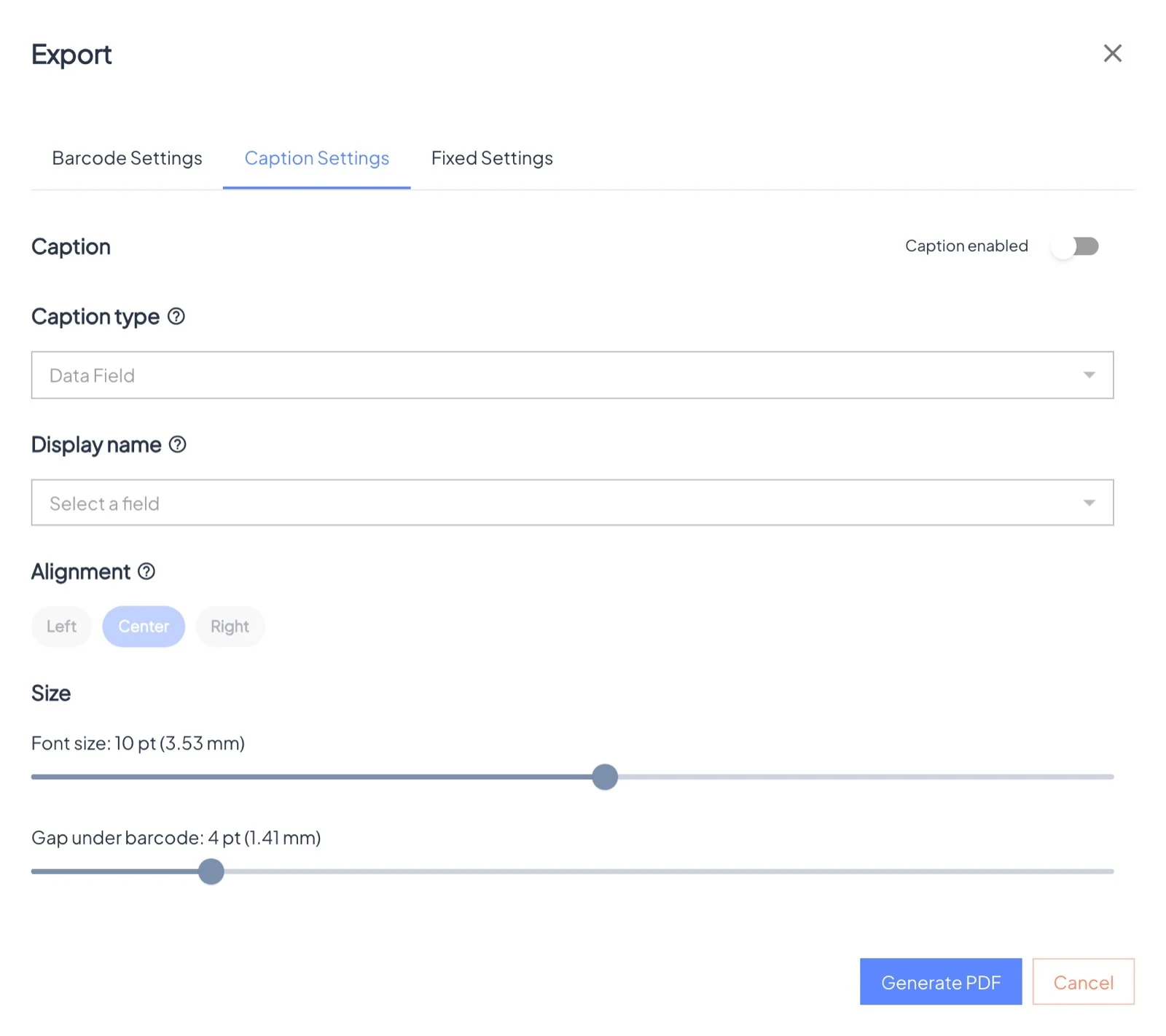
- In Export, choose PDF, QRCode and the Public URL version, pick a size (Medium suits most labels), and on Caption settings print a field such as the batch number under each code. Check the grid on Fixed settings and click Generate PDF.