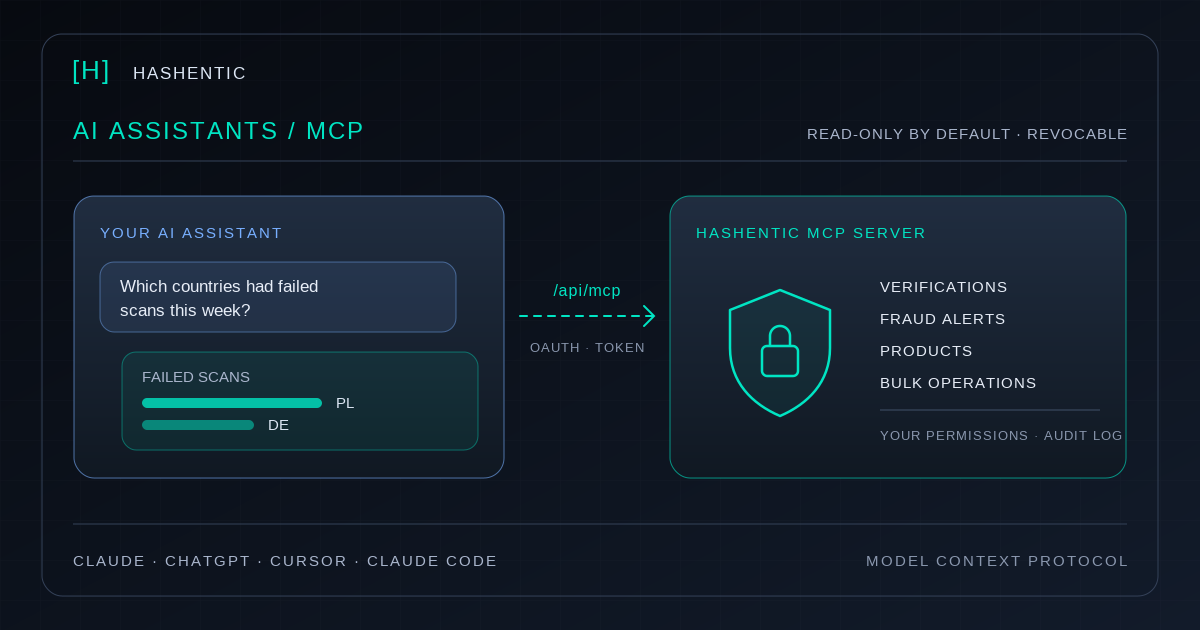
You can now connect your own AI assistant to Hashentic. Claude, ChatGPT, Cursor, Claude Code and other assistants that support MCP can read your verification data, fraud alerts and products and answer questions about them in plain language, using your account and nothing more.
Instead of opening the analytics, setting filters and exporting a table, you ask: "Which countries had failed scans this week?" or "Show the open critical fraud alerts." The assistant fetches the answer from your live Hashentic data.
What is MCP?
MCP (Model Context Protocol) is the open standard that AI assistants use to work with other services. A service publishes an MCP server; the assistant connects to it and can then call the tools the server offers. Hashentic now has its own MCP server. Its address is your Hashentic address followed by /api/mcp, and the admin panel shows it ready to copy.
What you can ask
With read access, the assistant can work with:
- Assets and the verification summary for your account
- Verifications by country, and lists of valid and failed verifications
- Failed verifications by country and by fail reason, counted in one step
- Product search and the history of a product
- Fraud alerts and their summary
- Bulk operations
That covers the everyday questions brand, operations and security teams ask:
- "Which countries had failed scans this week?"
- "Show the open critical fraud alerts."
- "Find this product and show me its history."
- "How did valid and failed verifications compare last month?"
- "Which bulk operations ran recently?"
You can also combine the answer with the assistant's other abilities: summarise it for a weekly report, draft a message to a distributor or turn it into a table.
Read only, or read and act
Every connection starts with read access. Changing data is a separate choice that is off by default.
| Access | What the assistant can do |
|---|---|
| Read only | Everything listed above: assets, verifications, products and their history, fraud alerts, bulk operations |
| Read and act | Everything above, plus changing the status of a fraud alert and blocking or unblocking a product |
Swipe or scroll horizontally to compare columns.
Nothing else. Even with read and act, the assistant cannot delete anything, edit product fields, manage users or change settings. Most assistants also ask you before each action, so you see what is about to happen and confirm it.
How to connect
Open the admin panel, go to System Applications and find the AI assistants (MCP) card. It shows the Server address and the connections you already have.
Claude, Claude Desktop and ChatGPT: sign in
- Copy the Server address from the AI assistants (MCP) card.
- In your assistant, add a custom connector (remote MCP server) with that address.
- The assistant opens a Hashentic page. Sign in if asked, check the app name and the address where access will be sent, choose the access level and click Allow.
The consent screen shows exactly where access is being sent before you approve anything. Allow only connections you started yourself.
Cursor, Claude Code and other clients: a personal token
- On the AI assistants (MCP) card, click Create token.
- Enter a name, choose Read only or Read and act, and how long the token stays valid: 30, 90 or 365 days.
- Copy the token and the configuration into the MCP settings of your client. The token is shown only once.
The step-by-step instructions are in the user guide chapter Connect AI assistants (MCP).
What the assistant never sees
The assistant works with your account, not around it.
- Your permissions apply. It sees only the assets and data that the signed-in user may see.
- Protected values stay masked. Values of protected and restricted fields are hidden.
- Sensitive data is never sent. The assistant never receives NFC tag keys, IP addresses, device details or form submissions.
- Every action is logged. Anything an assistant changes appears in the audit log, marked as done by an AI assistant.
Text in consumer messages or product data could try to mislead an assistant. Give read and act access only to assistants that need it, and read what the assistant is about to do before you confirm.
Revoke access at any time
Every connected app and token is listed on the card under Connected assistants and tokens, with its access level and when it was last used. Revoke cuts it off at once.
Access also ends on its own when a token expires, and for all of a user's assistants when that user changes or resets the password, turns off two-factor authentication or is deactivated.
Which plans include it
AI assistant connections are included in the Business and Enterprise plans and in the free trial. Current plans and limits are on the licence page.
Frequently asked questions
Which AI assistants work with Hashentic?
Any assistant that supports MCP. Claude, Claude Desktop and ChatGPT connect with a custom connector and a Hashentic sign-in; Cursor, Claude Code and other clients connect with a personal token.
Can the assistant change or delete my data?
Only if you allow it, and only in two ways: changing the status of a fraud alert and blocking or unblocking a product. It cannot delete anything, edit fields, manage users or change settings.
Does the assistant see more than I do?
No. It sees only what the signed-in user may see. Protected field values are masked, and NFC tag keys, IP addresses, device details and form submissions are never sent.
How do I disconnect an assistant?
Open System Applications, find the connection under Connected assistants and tokens on the AI assistants (MCP) card and click Revoke. Access ends immediately.
What does it cost?
AI assistant connections are included in the Business and Enterprise plans and in the free trial. The AI assistant itself is a separate service with its own plans.
Get started
Already on Business or Enterprise? Open System Applications, copy the server address and ask your first question. New to Hashentic? Start the free trial, which includes AI assistant connections, or talk to us about your use case.
Read the guide chapter