Hashentic now connects to Zapier. Successful scans, failed scans, fraud alerts, form submissions, owner registrations and ownership transfers in Hashentic can start a Zap, and a Zap can find, block or unblock a product. You can link Hashentic to Slack, Google Sheets, HubSpot, your helpdesk or any of the 7,000+ apps on Zapier, without a developer.
What you can automate
A Zap starts with a trigger in one app and runs actions in others. With Hashentic you can, for example:
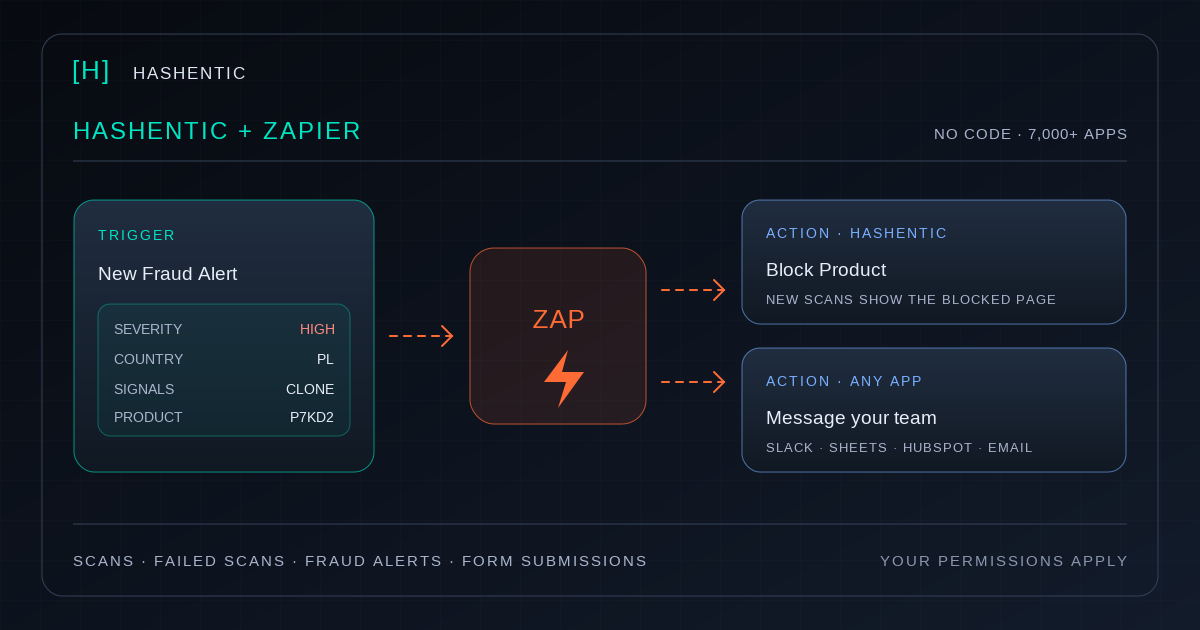
- Alert your brand protection team. A new high-severity fraud alert posts a Slack message with the product, the country and the signals.
- Stop scans of a product under attack. After a fraud alert, a Zap can run Block Product. Blocking applies to the whole product, genuine items included: every new scan of it fails and shows the blocked page. Use it when your team has decided that the product must be blocked, or add an approval step before it.
- Track failed scans. Each failed scan becomes a row in Google Sheets, with the product line, the country and the failure reason.
- Turn warranty registrations into CRM records. A form submission on your verification page creates a contact or a ticket in HubSpot, Salesforce or Zendesk.
- Thank registered buyers. When a customer submits a warranty form that asks for their email address in an unprotected field, a Zap sends a thank-you email from your email tool.
Triggers
Hashentic sends new events to Zapier automatically, usually within a few minutes.
| Trigger | Starts when |
|---|---|
| New Successful Scan | a customer verifies a genuine product |
| New Failed Scan | a verification fails: unknown, copied, blocked or tampered code or tag |
| New Fraud Alert | Hashentic detects suspicious activity around a product (needs fraud detection in your plan) |
| New Form Submission | a customer submits a form on your verification page, such as a warranty registration (needs forms in your plan) |
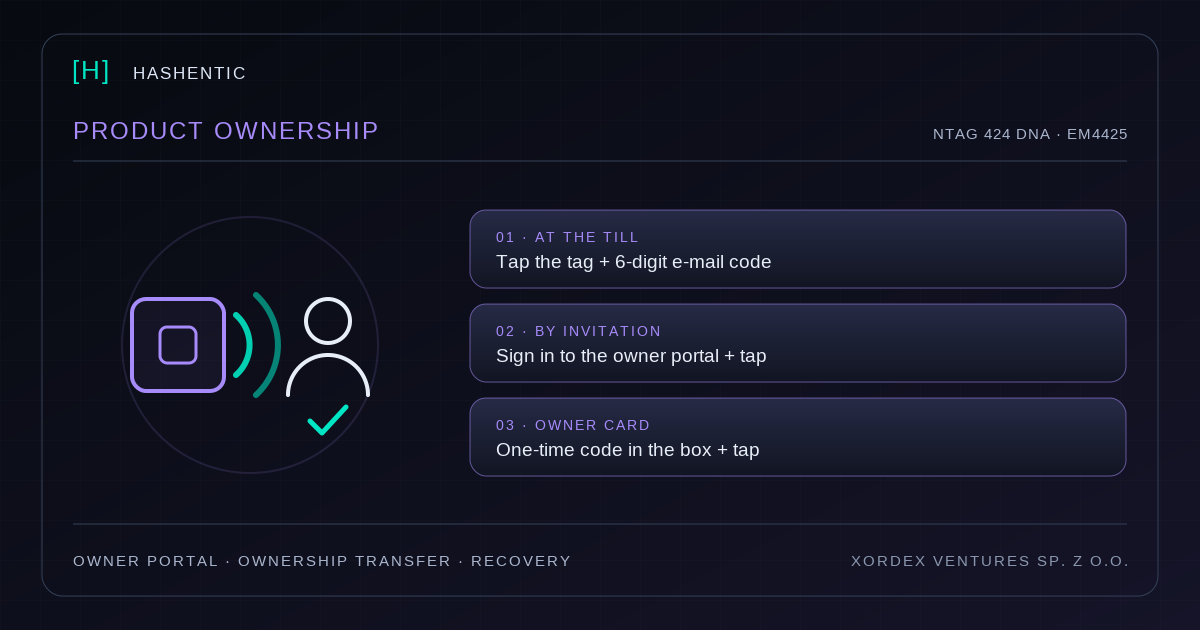
| New Owner Registered | an item gets its registered owner: at the till, by invitation, with an owner card or by staff (needs product ownership in your plan) |
| Ownership Transferred | an owner passes an item on and the transfer completes (needs product ownership in your plan) |
Swipe or scroll horizontally to compare columns.
The two ownership triggers send no owner e-mail address or identity: New Owner Registered says how the owner was registered (Registered via: Pos, Invite, OwnerCard or Staff), and Ownership Transferred carries only the event time, product line and product ID.
Each trigger can be limited to one product line, so that trigger receives only that product line's events. Actions in the same Zap are not limited by this filter: they can work with any product that the connected key's Zapier permissions allow.
Actions
- Find Product looks up a product by its product ID, a tag ID or the verification link printed on the tag.
- Block Product and Unblock Product change a product's status. Blocking a product that is already blocked, or unblocking one that is not, changes nothing.
How to connect
- Open the Hashentic invitation link and accept it. While Zapier reviews the app for its public directory, Hashentic appears in your Zapier account only after you accept the invitation.
- In the Hashentic admin panel, open System Applications and click Create connection key on the Zapier card. You need the Write settings permission. Create the key as the user whose access the Zap should have, and copy it: it is shown only once.
- In Zapier, create a Zap, choose Hashentic as the app of a trigger or an action, click Sign in and paste the key.
The step-by-step instructions are in the user guide chapter Use Hashentic with Zapier.
Safe by design
A Zap works as the user who created the key and never sees more than that user.
- Only the Zapier permissions. The key carries only the permissions that the user has and that Zapier needs: reading scans, fraud alerts, product lines and products, and blocking or unblocking products. Administrative rights such as managing users or settings never reach Zapier. Remove a permission from the user, and the Zap loses it at once.
- Sensitive data stays in Hashentic. Zapier never receives IP addresses, browser or device details, exact locations, tag keys, the values of protected form fields or the e-mail address or identity of an owner.
- Account rules carry over. If your workspace requires two-factor authentication and the key's owner has not set it up, or the owner must change their password, the key stops working until they do.
- You stay in control. New key replaces the key and stops event delivery to the Zaps made with the old one: reconnect Hashentic in Zapier with the new key, then turn each of those Zaps off and on. Disconnect stops the key and all its event deliveries; turn off or edit the Zaps that used it.
Form submissions can contain personal data that your customers entered. Mark sensitive fields as protected in your form, and check that sending form answers to Zapier fits your privacy notice.
What it costs
The Zapier connection is included in every Hashentic plan, including Free. Some triggers depend on your plan: fraud alerts need fraud detection, form submissions need forms, and owner registrations and ownership transfers need product ownership. Zapier has its own plans for the number of Zaps and tasks you run. Current Hashentic plans are on the licence page.
Frequently asked questions
Which Hashentic events can start a Zap?
New successful scans, new failed scans, new fraud alerts, new form submissions, new owner registrations and ownership transfers. Each can be limited to one product line.
Can a Zap block a product?
Yes. Block Product and Unblock Product change a product's status if the user who created the key has the matching permission. Blocking applies to the whole product, so every new scan of it fails until it is unblocked.
What data does Zapier receive?
Every event carries its event ID and time and, when Hashentic can identify them, the product line and product ID. Scans add the tag type, verification method, country and whether the scan came from a VPN, proxy, Tor or a risky IP; failed scans add the failure reason; fraud alerts add their severity, score and signals; form submissions add the form name and its answers; owner registrations add how the owner was registered (Pos, Invite, OwnerCard or Staff), and ownership transfers carry only the common fields. Long answers are shortened, and an event too large to send arrives with only these common fields, marked as truncated. Zapier never receives IP addresses, device details, exact locations, tag keys, protected form fields or the e-mail address or identity of an owner.
Do I need a developer?
No. You create a key in the admin panel and build Zaps in Zapier's editor. Developers who want to call the same endpoints directly can read the Zapier API reference.
How do I disconnect Zapier?
Open System Applications and click Disconnect on the Zapier card. The key stops working at once and Hashentic stops sending events to its Zaps. Turn off or edit those Zaps in Zapier. Your data in Hashentic stays.
Get started
Already using Hashentic? Accept the invitation, create a key under System Applications and build your first Zap. New to Hashentic? Start the free trial or talk to us about your use case.
Read the guide chapter