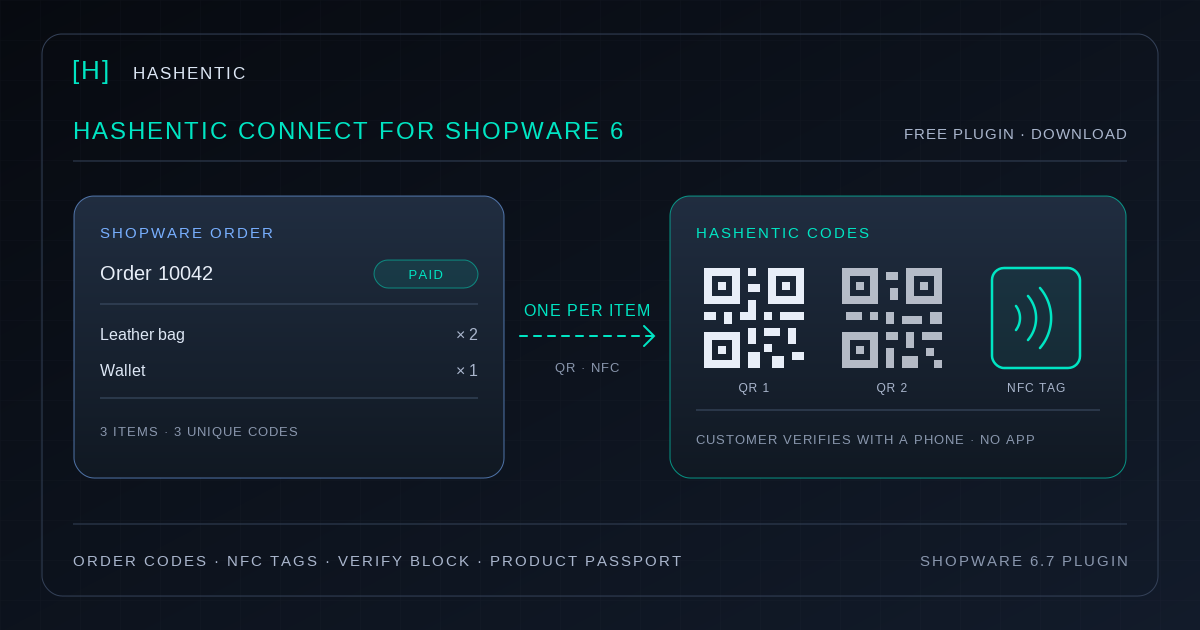
Hashentic Connect, our plugin for Shopware 6, is available as a download. Install it in a self-hosted Shopware 6.7 shop, connect the shop to your Hashentic account, choose the products to protect and every item of them you sell gets its own verifiable identity: a unique QR code or a secure NFC tag that a customer checks with a phone.
The plugin is free. Hashentic plans are billed by Hashentic, and a new account starts with a free trial. The Shopware Administration screens of the plugin are available in German and English.
What the plugin does
- Linked products. Protect a product on its Hashentic tab and a product line is created in Hashentic. Variants are protected with their main product, and name, image, manufacturer and variants stay in sync when you edit the product.
- A code for every item. When an order with protected products is paid (or completed, if you choose that in the plugin options), every item gets its own code. The order's Hashentic codes tab shows one card per item, and you can print a packing slip with the codes.
- Edits, cancellations and refunds. Changing order lines updates the codes. A cancelled order, or one refunded in full, releases its codes. Codes already printed and delivered stay valid.
- NFC tags at packing. For products set to ship with an NFC tag, the order shows a packing code. Scan it with the Hashentic mobile app under Pack order and write a blank tag for each item.
- Code batches. Issue codes for stock you label before it is sold and download them as CSV.
- Verify authenticity block. Protected products show a Verify authenticity block under the buy button. Turn it on or off and set the accent colour per sales channel.
- Digital product passport. Fill in the fields the product category requires, enter a GTIN per variant and publish. The passport gets a public page and a block on the product page.
How to install
- Download the plugin zip from the integrations page.
- Upload it in the Shopware Administration under Extensions My extensions, then install and activate it. Your agency can also add it with Composer.
- Create a connection key in the Hashentic admin panel: open System Applications, find the Shopware store card, enter the shop address and click Create connection key. The key is shown only once.
- Connect under Settings Extensions Hashentic in Shopware: paste the key and click Connect.
- Protect a product. Open the product, go to its Hashentic tab, choose QR code or NFC tag and click Protect product.
The plugin needs the Shopware message queue and scheduled tasks, which run by default. If the Shopware store card is missing in your admin panel, ask Hashentic support.
A listing in the Shopware Store will follow. Until then, the zip on the integrations page is the way to install the plugin.
What Hashentic receives from your shop
Hashentic receives product names, product numbers, images, manufacturer names, order numbers and quantities of protected products. Customer names and addresses are never sent. A buyer's e-mail address is sent only if you turn on owner invitations, so that Hashentic can invite the buyer to register as the owner of an NFC-tagged item.
The plugin pauses on a copy of your shop. When the shop address or Shopware's shop ID differs from the one it was connected on, or after Shopware's staging setup command has run, it stops sending updates until you confirm that the live shop moved, so a staging copy never changes your live data.
Frequently asked questions
Which Shopware versions does the plugin support?
Shopware 6.7. This download is for self-hosted shops.
When does an order get its codes?
When the payment of the order is paid, or when the order is completed if you choose that in the plugin options. Failed payment attempts do not count.
What happens to the codes when an order is cancelled?
A cancelled order, or an order refunded in full, releases its codes. Codes already printed and delivered stay valid for the products.
Do my customers need an app?
No. A QR code opens in the phone camera and an NFC tag opens when the phone is held to it. The Hashentic mobile app is only for your team, to write NFC tags at packing.
Is the plugin in the Shopware Store?
Not yet. A Shopware Store listing will follow. Until then, download the zip from the integrations page.
Get started
Download Hashentic Connect from the integrations page and protect your first product. The step-by-step instructions are in the user guide chapter Use Hashentic with Shopware. Questions about your shop? Talk to us.
Read the guide chapter